Customer portal
The portal is a signed-in page on your brand's help site where a customer reads their own tickets and replies to them. It is an extra place to have the same conversation, not a replacement for email. Agent replies still arrive as full email, replying by email still works, and we never send a customer a message telling them to click through to read it.
Turn it on
The portal is off for every brand until you turn it on. Go to Settings, then Brands, pick a brand, and open the Portal tab.
Set up sending for that brand first. Signing in means emailing the customer a link, so the brand needs a from-address before the portal can be enabled. If you have not set one up yet, the toggle stays disabled and points you at the Outbound tab.
Turning the portal on or off takes up to a minute to reach customers. Your help site remembers each brand's settings for a short while, so the sign-in link can linger briefly after you switch it off.
Where it lives
The portal shares a home with your knowledge base. Both are served from the same address for that brand, so a customer reads an article and signs in to their tickets on one site.
If you have set up a custom domain for the brand, that is where the portal lives, and the allmy.support subdomain sends visitors there. One address at a time keeps sign-ins and passkeys tied to a single place.
You do not need a knowledge base to run a portal:
| Knowledge base | Portal | What the address serves |
|---|---|---|
| On | On | Your articles, with a sign-in link in the header |
| Off | On | The portal |
| On | Off | Your articles, and nothing changes |
| Off | Off | Nothing. The address does not resolve |
How customers sign in
One email box, three ways to use it: send me a link, use a password, or use a passkey. The emailed link is the one every customer has, because it needs nothing set up in advance.
There is no signup form. A sign-in link is only sent to someone who already has a ticket with that brand, so a customer gets in because they wrote to you, not because they registered. An address you have never heard from sees the same message and receives no mail.
Signing in is per brand. A customer signs in to each brand's portal separately, and a session for one brand never shows another brand's tickets. Once signed in, they stay signed in for 30 days.
What customers see
Their own tickets with that brand: number, subject, last activity, and status. Closed tickets sit behind a filter rather than crowding the list.
Statuses are written for the person reading them, not for your queue:
| You set | The customer reads |
|---|---|
| Open | Open |
| Pending | Awaiting your reply |
| Hold | In progress |
| Closed | Closed |
Opening a ticket shows the conversation: the customer's messages, your replies, and any auto-reply, with the agent names your emails already carry.
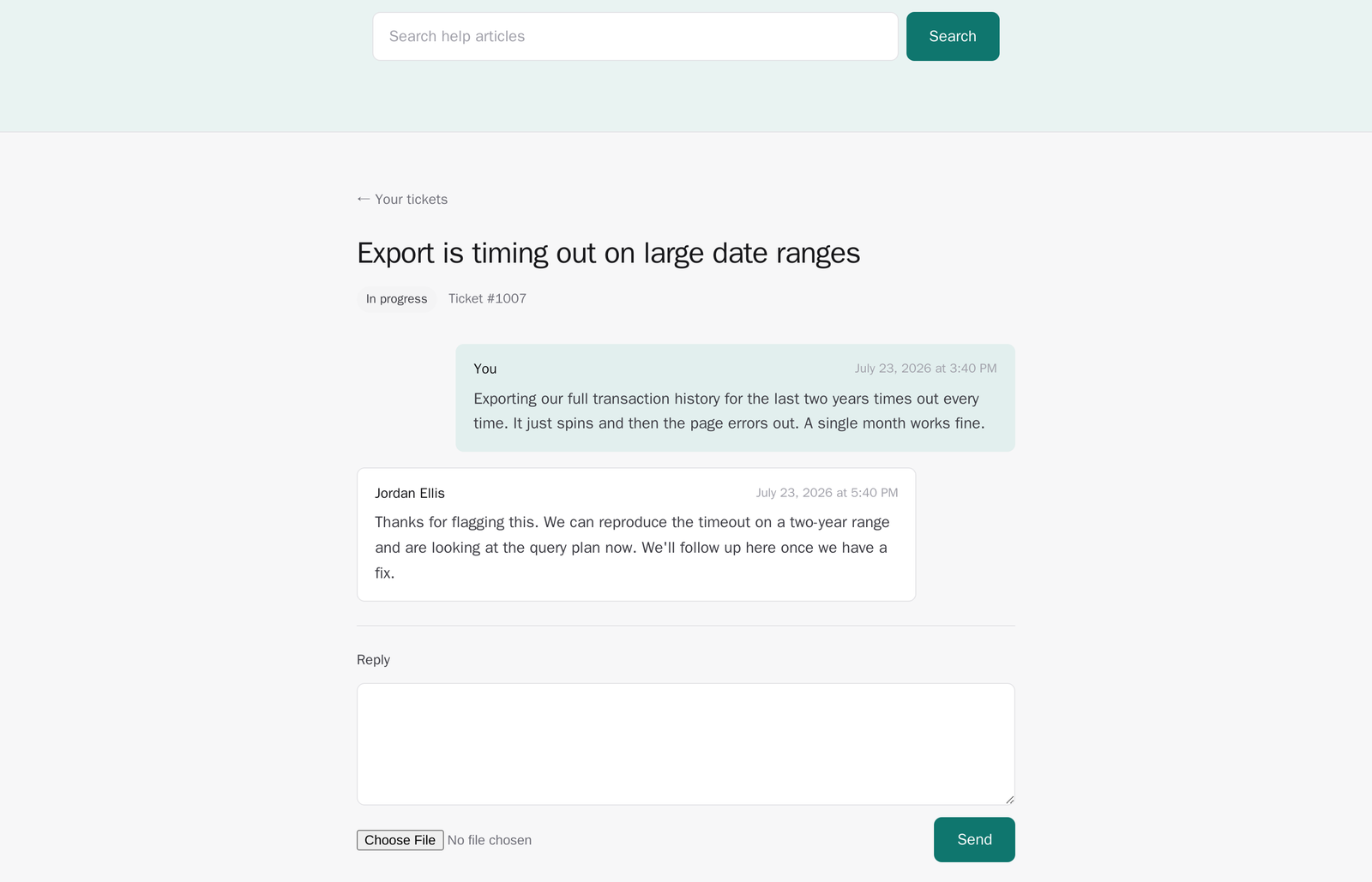
Nothing else from the ticket is shown. Internal notes never appear, and neither does the assignee, priority, tags, custom fields, SLA timers, spam verdicts, or satisfaction ratings. Your team can keep working in the ticket exactly as before.
Replying and starting a ticket
A reply written in the portal is treated as the same thing as a reply sent by email. It reopens a closed ticket, restarts the SLA clock, and fires your automations and assignment notifications. Nothing in your workflow needs to know where it came from.
A signed-in customer can also start a new ticket. There is no confirm-by-email step, because being signed in already proves the address.
They can attach one file up to 5 MB to a reply or a new ticket: PNG, JPEG, GIF, or PDF. The file type is checked by reading the file itself, not by trusting its name. Customers can also download the attachments on their own tickets.
Sign-in methods
From their account page a customer can set a password and add or remove passkeys. Both are set up from inside a session, so the emailed link is always the way in the first time.
A passkey is tied to the address it was created on. If you move a brand to a custom domain, or drop one, passkeys made on the old address stop working and the customer adds a new one. Their password and the emailed link are unaffected, so this is never a lockout.
What customers cannot do
Close a ticket. Closing stays yours. It is what triggers a satisfaction survey and what your resolution figures count, so a customer closing their own ticket would survey them about a conversation they ended and move your numbers on something no agent did. A customer replying to a closed ticket reopens it, the same as by email.
Add another email address. Merging addresses moves ticket history and belongs on your side, in the customers directory.
Switch brands in one session. A customer of two of your brands signs in to each portal separately.
If you run more than one brand
Tickets never cross brands. A session on one brand's portal cannot see, or even reveal the existence of, a ticket with another of your brands.
Worth knowing before you turn it on: a customer's password and passkeys belong to them across your workspace, not to one brand. So somebody who deals with two of your brands will find the same password works on both portals, and can reasonably conclude the two are run by the same people. If you keep two brands deliberately unconnected, weigh that before enabling the portal on both.
Coming from Zendesk
A customer who exists in your Zendesk but has not written to you since the switch can still sign in. The first time they do, their Zendesk history is pulled in behind the scenes, so their past tickets fill in rather than staying empty. See Import from Zendesk.
The portal is off until you turn it on, per brand, and it changes nothing about how email works. Customers who prefer to answer from their inbox carry on doing exactly that.