Website widget
The website widget is a contact form you put on your own site. A visitor writes to you without leaving the page, and the submission becomes a ticket in that brand's inbox. You reply by email as usual, and so does the customer, or in the portal if you run one.
It is a form. There is no live chat and no article search in the widget. Each brand has its own widget and its own key, so a submission always lands in the right inbox.
The widget is where a conversation starts. If you also run the customer portal, it is where that same customer reads and answers it later.
Turn it on
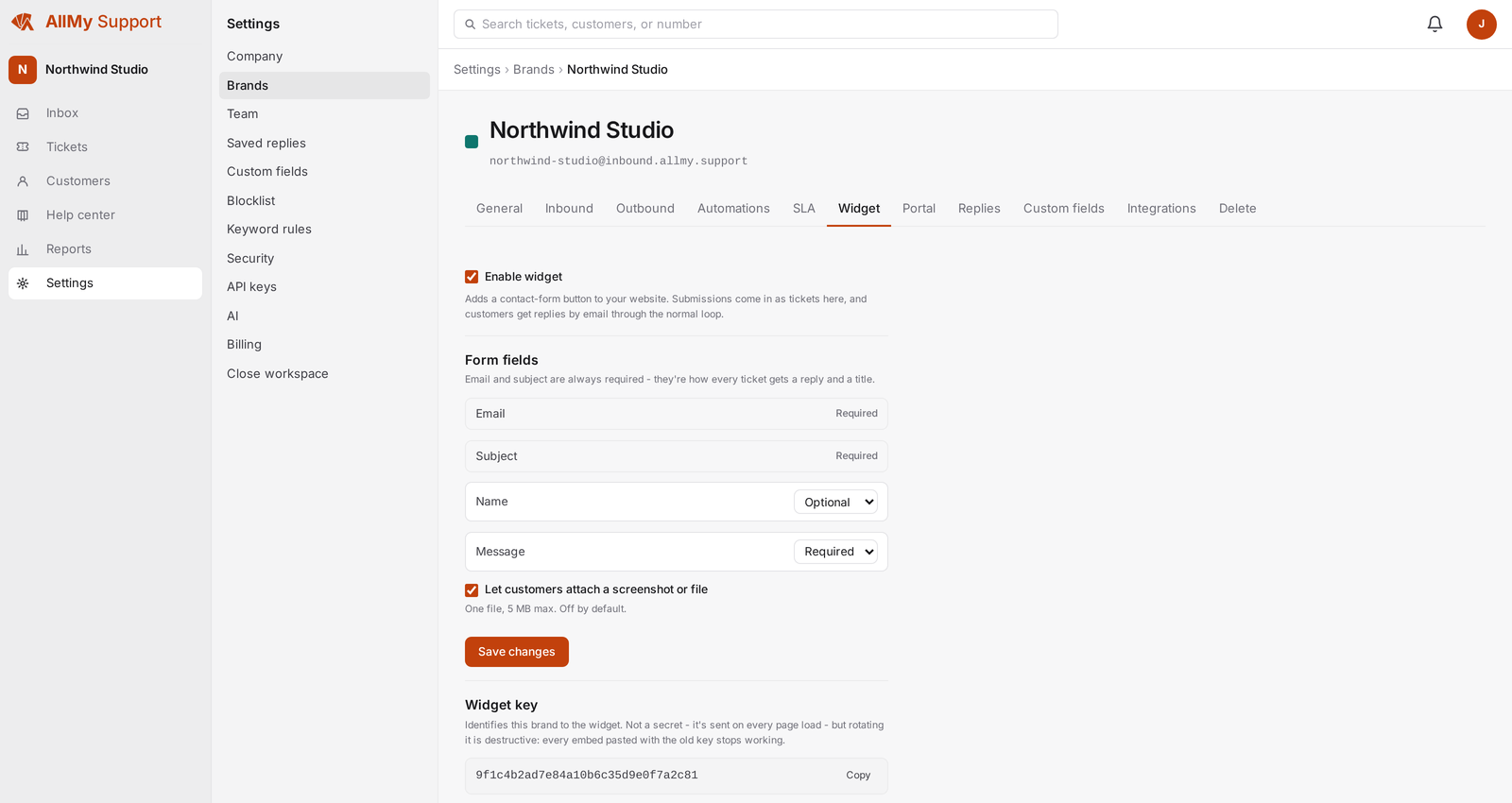
Open Settings, choose the brand, then Widget. Switch it on and the brand's widget key appears with the snippet to paste. Only admins can see this page. Turning the widget off makes the key stop working immediately. The allowed-domains list restricts which sites the widget loads on: leave it empty to allow any site, or list your domains, with *.example.com covering subdomains.
Paste the snippet
Add the snippet to your site before the closing body tag. It loads asynchronously, so it never blocks your page, and it survives client-side navigation on a single-page app.
<script async src="https://api.allmy.support/widget.js" data-widget-key="YOUR_WIDGET_KEY"></script>
If your site sets a Content Security Policy, allow https://api.allmy.support in script-src and in connect-src, and https://app.allmy.support in frame-src. The widget calls our API from your page to check its key before it renders, so a missing connect-src entry means no button ever appears. The button is drawn on your page in a shadow root, so it cannot inherit or leak your styles, and the form itself opens in a frame on our domain. The launcher also sets its own styling inline, so a style-src without 'unsafe-inline' can leave the button unstyled or out of position.
Embed options
Every option is an attribute on the script tag, so two pages can carry different settings without changing anything in your account. A value we do not recognise falls back to the default rather than breaking the widget.
| Attribute | Default | What it does |
|---|---|---|
data-widget-key | required | Your brand's widget key, copied from the widget settings for that brand. |
data-color | brand colour | Six hex digits, with or without a leading hash, for example 4f46e5. Overrides the accent for this embed only. |
data-position | bottom-right | bottom-right, bottom-left, top-right, or top-left. |
data-offset | 0,0 | Pixels to nudge the button and the panel from that corner, as x,y. |
data-attach | fixed | fixed pins the button to the corner of the window. page puts it in the document so it scrolls with your content. none renders no button at all. |
Control it from your own code
The snippet defines amsw(), but it is only defined once the loader tag has run. If your own code calls amsw() earlier, for example in the page's <head>, paste the small queue stub below in its own script tag before the loader tag. It parks your calls and the loader replays them the moment it arrives, so you never have to wait for it.
amsw('open')opens the form. Pair it withdata-attach="none"to use your own Contact link instead of our button.amsw('close')closes the form.amsw('hide')removes the button, for pages where you do not want it.amsw('show')brings the button back afterhide.amsw('identify', { email, name, data })fills the form in for a visitor you already know.
<script>
  window.amsw = window.amsw || function () { (window.amsw.q = window.amsw.q || []).push(arguments); };

  // Anything you already know about the signed-in visitor.
  amsw('identify', {
    email: '[email protected]',
    name: 'Jo Smith',
    data: { plan: 'Pro', accountId: '10482' }
  });
</script>
<script async src="https://api.allmy.support/widget.js" data-widget-key="YOUR_WIDGET_KEY"></script>
The email and name are filled in but stay editable, because a signed-in visitor may be writing about a different address. Anything in data shows to your agent as context on the ticket, and any key matching one of your ticket fields fills that field in too. Keys we cannot match are still shown as context, never dropped silently.
Identify is a convenience, not a sign-in. It comes from your page, so we treat it as untrusted: the sender still confirms their address by email like anyone else.
Choose your fields
- Email: Always required. It is the address you reply to, so it cannot be turned off.
- Subject: Always required. Guarantees every ticket arrives with a title.
- Message: Required by default. Can be set to optional, or off if you only want an attachment.
- Name: Optional by default. Can be required, or off.
- Attachment: Off by default. One file, up to 5 MB.
You cannot save a widget with the message field off and attachments off, because it would file tickets with nothing in them.
Attachments and screenshots
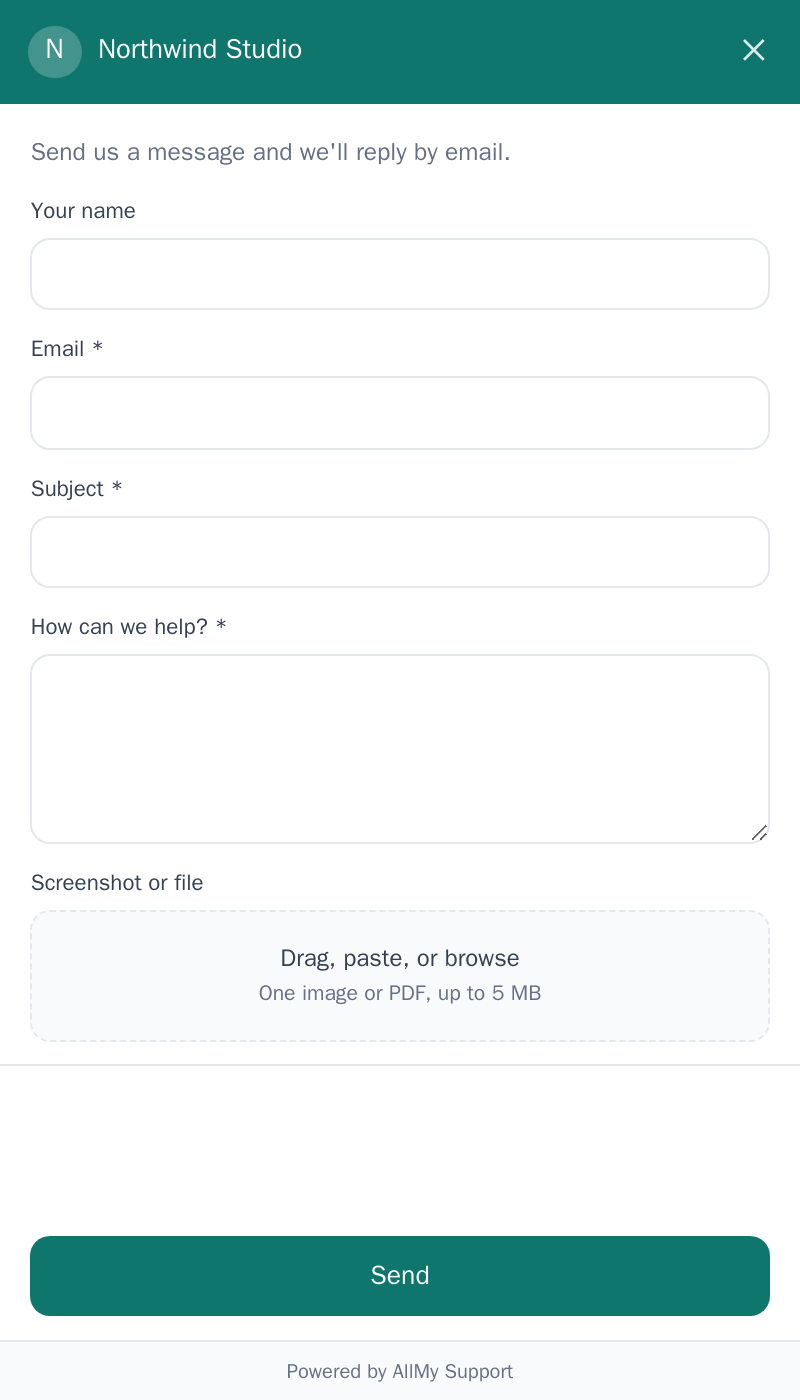
One file per submission, up to 5 MB, as PNG, JPEG, GIF, or PDF. We check what the file actually is, not what it is named, so a renamed executable is refused.
A customer can pick a file, paste an image from the clipboard, or drop one on the form. On a phone the picker offers the photo library and the camera, and a screenshot is already in the photo library. Large images are shrunk in the browser before they upload, so a screenshot from a big monitor still fits.
There is one slot. Attaching a second file replaces the first, and the form says so rather than swapping it quietly.
What your customer sees
The button opens a panel carrying your brand name, logo, and colour. On a phone it fills the screen. There is a spam challenge above the send button, and a small "Powered by AllMy Support" line at the bottom that opens our site in a new tab.
Why we confirm the address
After sending, the customer gets an email asking them to confirm. The ticket is created when they click it. Until then nothing exists in your account: no ticket number, no SLA clock, no automation, no contact record.
That is what stops anyone using your form to send mail in someone else's name. The confirmation carries your brand's logo and colour, and it never repeats what was written, so it cannot be used to push a message at a stranger. The link lasts 24 hours, and a new one can be sent after a minute.
If something is not working
- Nothing appears on the page. Check the widget is switched on for that brand and that the key in the snippet matches. A widget that is off behaves exactly like a key that never existed. If both are right, check your Content Security Policy: the button is drawn only after the loader reads your brand settings, so a missing
connect-srcentry leaves the page blank with no error. - The button is behind your own header or cookie bar. Move it with
data-positionanddata-offset, or setdata-attach="none"and open the form from your own page. - A customer never got the confirmation. Ask them to check their spam folder, then send again from the form. A new link can be sent a minute after the last one.
- An attachment was refused. It is over 5 MB, or it is not a PNG, JPEG, GIF, or PDF.
The widget and the help site contact form both use the same confirm-by-email step, so whichever one your customers use, unconfirmed junk never reaches your inbox.