Connect your SMTP
Replies send through your brand's own SMTP account, not a shared AllMy Support sender. Your sending reputation stays yours, and mail from your brand always comes from your domain.
Provider presets
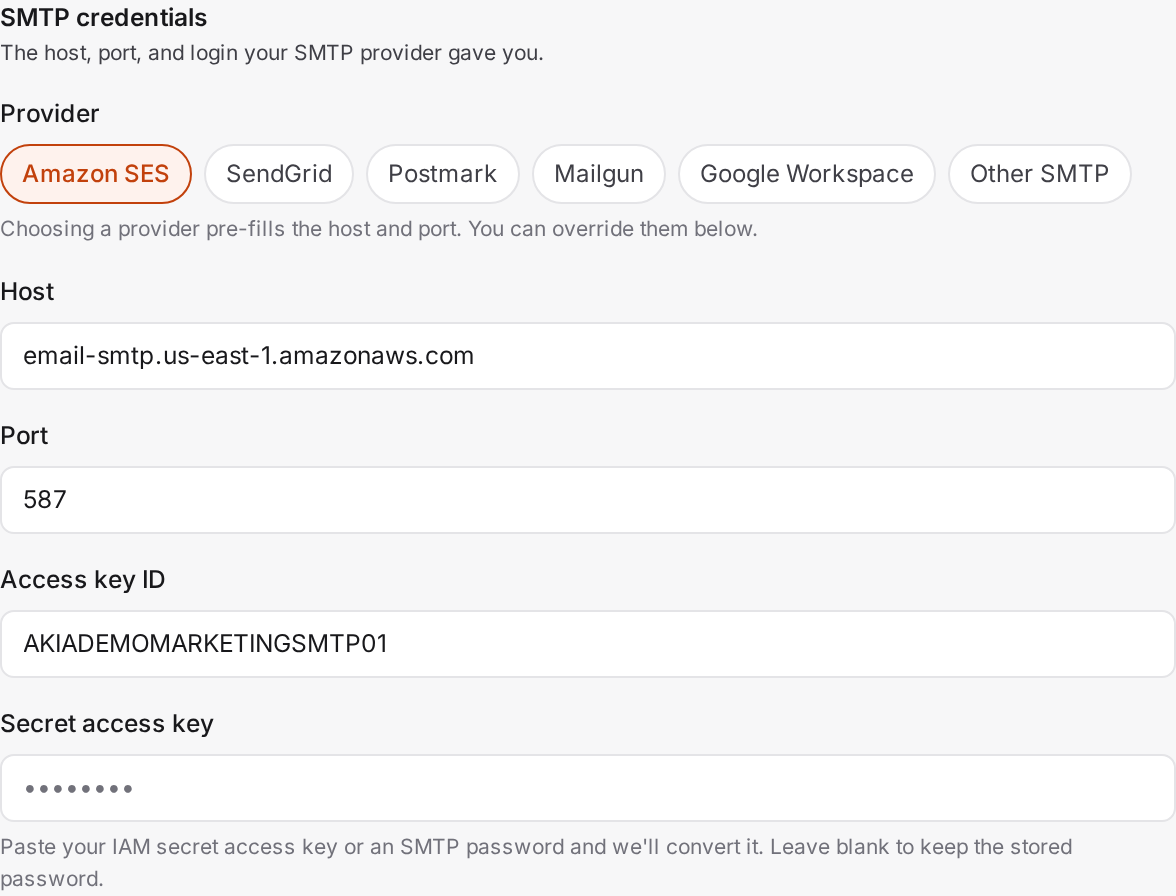
Pick a preset and it fills in the host and port for you. All six run on port 587.
- Amazon SES
- SendGrid
- Postmark
- Mailgun
- Google Workspace
- Other, for any provider not listed. Enter your own host and port.
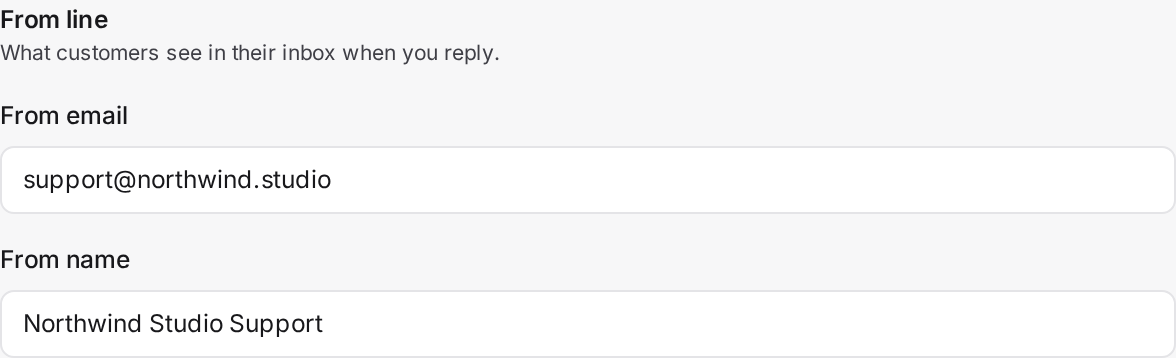
After picking a preset, you enter your username, password, From name, and From email. The From email must be on your brand's own domain.

Provider notes
- Amazon SES: paste your IAM secret access key and AllMy Support converts it to an SMTP password for you, or paste an SMTP password directly.
- Google Workspace: use an App Password, not your regular account password.
To connect your SMTP
- Go to Brand → Outbound.
- Pick your provider preset.
- Enter your username and password.
- Set your From name and From email, on your own domain.
- Save, then click Test connection, then Test send.
If a reply fails to send
A failed reply shows a failed delivery state right on the ticket, with the reason and a retry action, so you're never left wondering whether a customer got your message.
Tip: Connecting SMTP gets your replies sending. To make sure they land in the inbox instead of spam, also set up SPF, DKIM, and DMARC. See Email authentication.