Account security
Sign in with email and password, or with Google. Google sign-in already satisfies the two-factor requirement below, since it's backed by your Google account's own security.
Two-factor authentication (TOTP)
Turn on an authenticator app under Account → Security. Scan the QR code (or enter the key by hand) in an app like 1Password, Google Authenticator, or Authy, then confirm with the 6-digit code it generates. The factor isn't active until that code verifies.

Passkeys
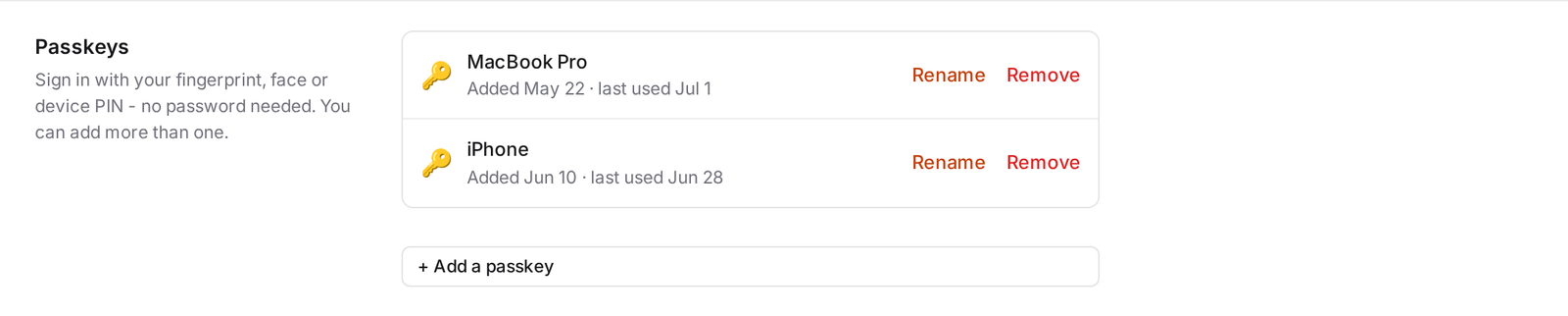
A passkey lets you sign in with your fingerprint, face, or device PIN, no password needed. Add more than one, name each so you can tell them apart, and revoke any of them individually if you lose a device. A passkey can sign you in on its own; it satisfies two-factor by itself.
Trusted devices
After you complete a TOTP challenge, you can choose "Trust this device for 30 days" to skip the code on that browser next time. You'll still need your password, just not the second step, until the 30 days are up. Revoke any trusted device from Account → Security whenever you want.

If you can't use your factor
Request an email code instead. It signs you in the same as your usual factor would, and it's the built-in recovery path if your phone with your authenticator app or passkey isn't available.
To turn on two-factor authentication
- Go to Account → Security.
- Add an authenticator app.
- Scan the QR code and enter the current code to confirm.
- Optionally add a passkey too, and trust the device you're on.
With a factor enrolled, a correct password alone won't sign you in: you always complete the second step. Admins can also require two-factor for everyone in the workspace from Workspace → Security.