Invoicing
AllMy Ledger lets you create professional invoices, email them to customers, track what's owed, record payments, and export as PDF.
Creating an Invoice
- Go to Invoices in the sidebar and click New Invoice
- Select a customer (or click + Add New to create one on the spot)
- The invoice number auto-generates, or type your own
- Set the Date and Due Date (due date auto-fills from the customer's payment terms if set)
- Add line items — each has a description, quantity, rate, and account/category
- Optionally add tax as a percentage of the subtotal
- Add notes or a memo if needed
- Click Create Invoice
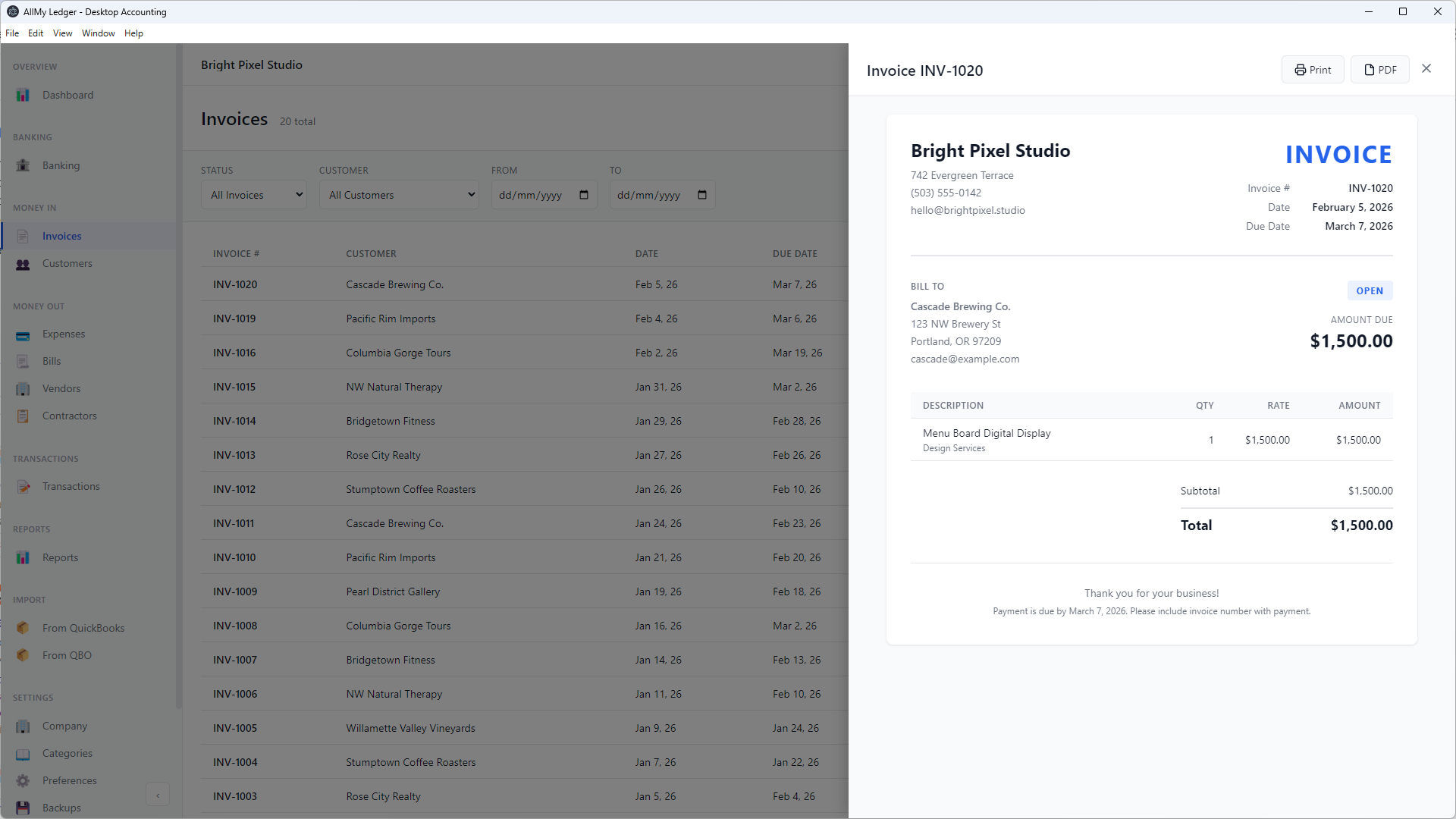
Line Items
Each line item has these fields:
- Description — What you're billing for
- Qty — Quantity (defaults to 1)
- Rate — Price per unit
- Amount — Calculated automatically (Qty × Rate)
- Account/Category — Which revenue account to post to
Click + Add Item to add more lines. You need at least one complete line item to save.
Tax
Tax is a percentage applied to the subtotal. Enter the rate (e.g., 8.25) in the tax field and the amount calculates automatically. If you don't charge tax, leave it at 0.
Exporting as PDF
To export an invoice as PDF:
- In the invoice list, hover over the invoice and click the view icon (eye)
- In the invoice preview, click PDF to save the file
The PDF includes your company name and address, the customer's billing details, all line items with amounts, tax, totals, and any payment history. You can also use the Print button or Ctrl+P to print directly.
Emailing Invoices
Send invoices by email directly from the app. The PDF is attached automatically.
- Open an invoice and click Email
- Review the recipient, subject, and body (all pre-filled from your template)
- Click Send
You can also check Email to customer when creating a new invoice to open the send dialog right after saving.
AllMy Ledger supports three sending methods: your Gmail account, any SMTP email provider, or the built-in AllMy email service. Set up email in Preferences > Email. See the full Email Invoicing guide for setup instructions, templates, and merge fields.
Recording Payments
When a customer pays:
- Hover over the invoice and click the payment icon (dollar sign)
- Enter the payment amount, date, and which bank account to deposit into
- Optionally add a reference number (check number, etc.) and memo
- Click Receive Payment
AllMy Ledger supports partial payments — record what you received and the remaining balance stays on the invoice. If you have multiple unpaid invoices for the same customer, you can apply one payment across several invoices using the Auto-Apply button, which applies to the oldest invoices first.
Invoice Statuses
Invoice status is calculated automatically:
- Open — Unpaid, not yet past due
- Overdue — Unpaid and past the due date
- Paid — Balance is zero
- Void — Cancelled (reverses journal entries)
Filter the invoice list by status using the dropdown at the top. You can also filter by customer and date range.
Editing, Duplicating & Voiding
- Edit — You can only edit an invoice if no payments have been recorded against it. Hover and click the pencil icon.
- Duplicate — Creates a copy with today's date and a new invoice number. Useful for repeat billing.
- Void — Cancels the invoice and reverses the journal entries. You must enter a reason. This cannot be undone.
- Make Recurring — Converts the invoice into a recurring template for automatic generation on a schedule.
Tip: Need to send a proposal before invoicing? Use Estimates & Quotes to send a professional estimate, then convert it to an invoice in one click.
Tracking Receivables
Use the AR Aging report to see all outstanding invoices grouped by age (Current, 1-30 days, 31-60, 61-90, 90+). Customer Statements let you generate a summary for a specific customer — either all unpaid invoices or a full transaction history.
What Invoicing Doesn't Do
AllMy Ledger invoicing is designed to be simple and accurate. It does not include:
- Custom invoice templates or logos
- Online payment links (Stripe, PayPal, etc.)
- Per-line-item discounts or tax
Multi-currency invoicing: When multi-currency is enabled, invoices show a Currency dropdown and Exchange Rate field. You can invoice clients in their local currency, and the amounts convert to your base currency automatically.