Chart of Accounts
Your chart of accounts organizes every transaction into categories. AllMy Ledger creates a default chart when you start a new company — you can use it as-is or customize it for your business.
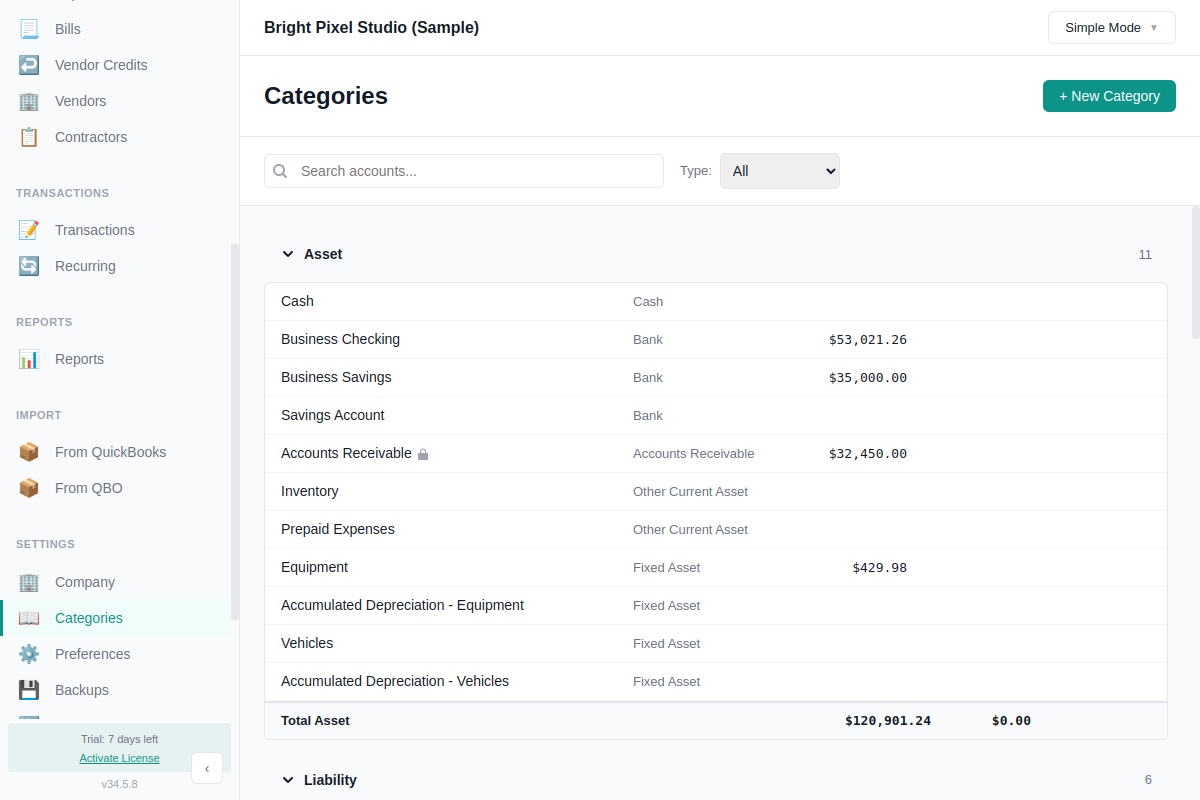
In Simple Mode, this page is called Categories. In Accountant Mode, it's Chart of Accounts. Same page, same features — just different labels.
Default Accounts
New companies start with about two dozen accounts covering the basics:
- Assets — Cash, Checking, Savings, Accounts Receivable, Inventory, Equipment
- Liabilities — Accounts Payable, Credit Card, Payroll Liabilities, Sales Tax, Loan Payable
- Equity — Owner's Equity, Owner's Draw, Retained Earnings
- Income — Sales Revenue, Service Revenue, Other Income, Interest Income
- Expenses — COGS, Advertising, Auto, Bank Charges, Contract Labor, Insurance, Office Supplies, Rent, Utilities, and more
You don't need to use all of them. Accounts you never use won't clutter your reports — use the Hide inactive toggle to keep your list clean.
Account Types & Subtypes
Every account has a type and a subtype. The type determines where it appears in reports (Balance Sheet vs Profit & Loss). The subtype adds more detail:
| Type | Subtypes |
|---|---|
| Asset | Cash, Bank, Accounts Receivable, Other Current Asset, Fixed Asset, Other Asset |
| Liability | Accounts Payable, Credit Card, Other Current Liability, Long-Term Liability |
| Equity | Owner's Equity, Retained Earnings |
| Income | Income, Other Income |
| Expense | Expense, Other Expense, Cost of Goods Sold, Cost of Services Sold |
Adding an Account
- Go to Chart of Accounts (or Categories in Simple Mode)
- Click + New Account (or + New Category)
- Fill in the form fields (see below)
- Click Save
Form fields
- Account Number — Required in Accountant Mode, hidden in Simple Mode. Must be unique (e.g., 6000).
- Account Name — Required. What you'll see in dropdowns and reports.
- Type — Asset, Liability, Equity, Income, or Expense.
- Subtype — Options change based on the type you choose.
- Tax Line — For Income and Expense accounts only. Map to a Schedule C line for the Schedule C Tax Report.
- Currency — Visible when multi-currency is enabled. Set the currency this account operates in. Once transactions are posted, the currency is locked.
- Parent Account — Optional. Nest this account under another account of the same type for grouping.
- Description — Optional notes (Accountant Mode only).
Parent-Child Hierarchy
You can organize accounts into a hierarchy by setting a parent account. For example, put "Office Supplies" and "Computer Equipment" under a parent "Operating Expenses" account. Child accounts appear indented in the list, and their balances roll up into the parent on reports.
A parent account must be the same type as its children — you can't put an Expense account under an Asset parent.
Editing & Deactivating
Hover over any account and click the edit icon to change its name, subtype, parent, tax line, or description. You can also mark an account as inactive — it will be hidden from dropdowns and the account list, but all historical transactions stay intact.
Use the Hide inactive toggle at the top to show or hide inactive accounts.
System Accounts
Four accounts are locked and cannot be deleted or restructured:
- Accounts Receivable
- Accounts Payable
- Owner's Equity
- Retained Earnings
These are essential for double-entry bookkeeping. You can rename them, but you can't delete them or change their type. They're marked with a lock icon in the list.
Toolbar Features
- Search — Find accounts by name, number, or description.
- Type filter — Show only one account type (e.g., just Expenses).
- View Ledger — Hover any account and click the ledger icon to jump to the General Ledger filtered to that account.
Tip: Don't over-complicate your chart of accounts. Most small businesses need 20-30 accounts. You can always add more later as your needs grow.