Estimates & Quotes
Send professional estimates to clients before starting work. When they accept, convert the estimate to an invoice in one click — no re-typing, no copy-paste errors.
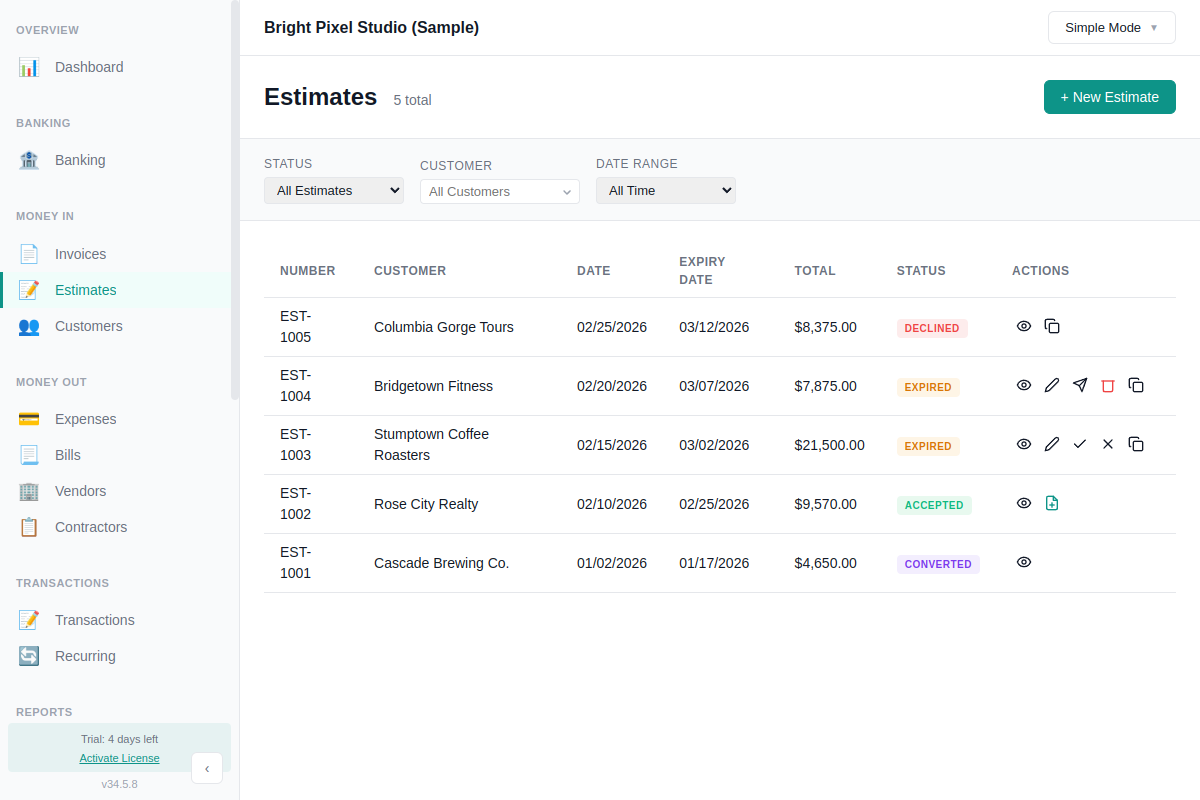
No accounting impact. Estimates are proposals, not transactions. They don't affect your books until you convert one to an invoice.
Creating an Estimate
- Go to Estimates in the sidebar and click New Estimate
- Select or create a customer
- Set the estimate date and expiry date
- Add line items with description, quantity, and rate
- Add tax if applicable
- Add any customer-facing notes
- Click Save
AllMy Ledger auto-generates sequential estimate numbers (EST-0001, EST-0002, etc.). The estimate is saved as a Draft.
Sending and Tracking
When you're ready to send the estimate to your client, click Email to send it directly from the app with the PDF attached. You can also export the PDF manually to print or send yourself. The PDF shows "Prepared For" (not "Bill To") and "Valid Until" (not "Due Date").
Email uses the same setup as invoice emails. See Email Invoicing for setup instructions and template customization.
Status Workflow
Each estimate moves through a clear lifecycle:
| Status | Meaning |
|---|---|
| Draft | Just created, not yet sent to the customer |
| Sent | Delivered to the customer, waiting for response |
| Accepted | Customer agreed to the estimate |
| Declined | Customer declined the estimate |
| Expired | Past the expiry date without a response (automatic) |
| Converted | Turned into an invoice |
Expired status is computed automatically based on the expiry date — no manual cleanup needed.
Converting to Invoice
When a client accepts your estimate, convert it to an invoice in one click:
- Open the accepted estimate
- Click Convert to Invoice
- AllMy Ledger creates a new invoice with all line items, customer info, tax rates, and notes carried over
The conversion creates proper double-entry accounting entries automatically — accounts receivable is debited, and income accounts are credited. The estimate status changes to Converted and links to the resulting invoice for a complete audit trail.
The new invoice appears in your Invoices list with full payment tracking, PDF generation, and aging reports — just like any other invoice.
Duplicating Estimates
Need to revise a proposal? Duplicate any estimate — even declined ones — to quickly create a new version. The duplicate copies all line items, tax rates, and notes into a new Draft estimate.
Exporting as PDF
Click Export PDF to generate a professional estimate document. The PDF includes your company details, the customer's information, all line items with totals, and the expiry date.
Tip: Use estimates for any proposal, quote, or bid — even if you're not sure the client will accept. Since estimates have no accounting impact, there's no downside to creating them.