Email Invoicing
Send invoices, estimates, credit memos, and vendor credits by email directly from AllMy Ledger. The PDF is attached automatically. You can use your own email account (Gmail or any SMTP provider) or the built-in email service that works with your license.
Three ways to send. Use your Gmail account, connect any SMTP email provider, or use the built-in AllMy email service with no setup beyond your business name.
Setting Up Email
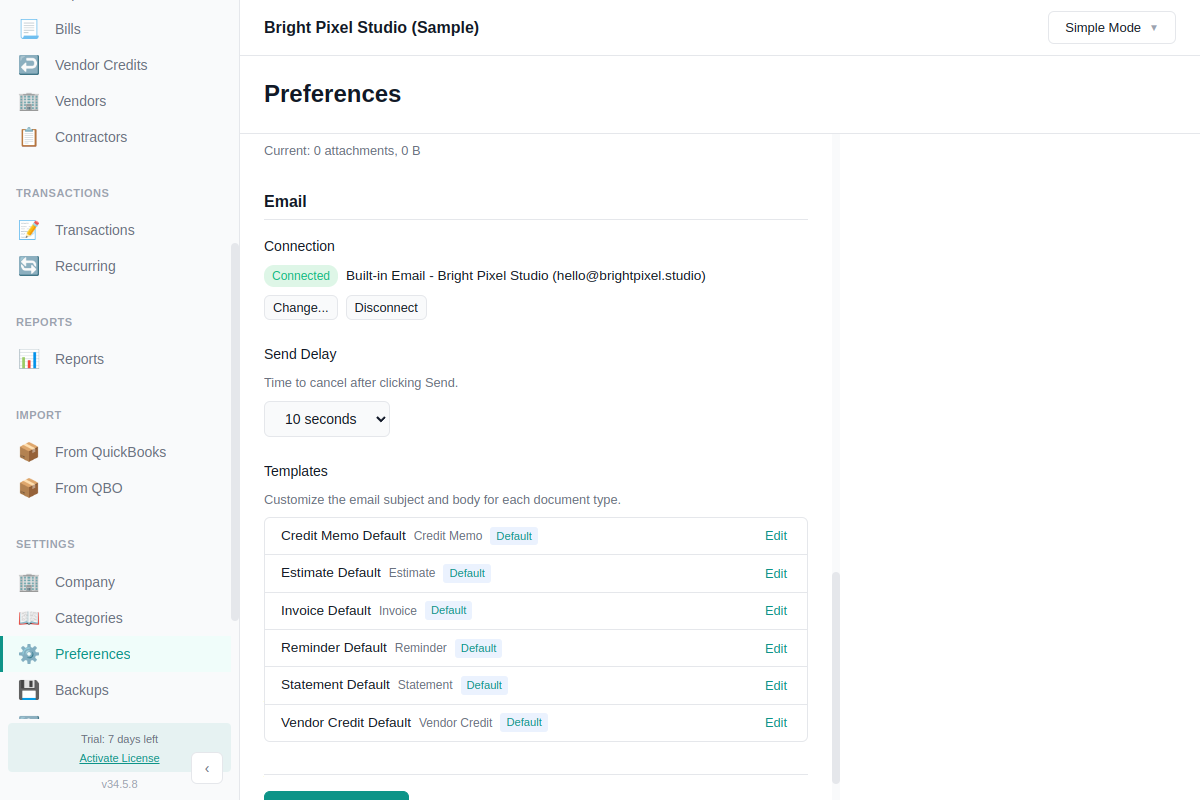
Before you can send emails, connect an email account in Preferences:
- Go to Preferences and find the Email section
- Click Set Up Email to open the setup wizard
- Choose a sending method: Built-in Email, Gmail, or Other Email Provider
- Enter the required details (see below)
- Test the connection and you're done
Sending Methods
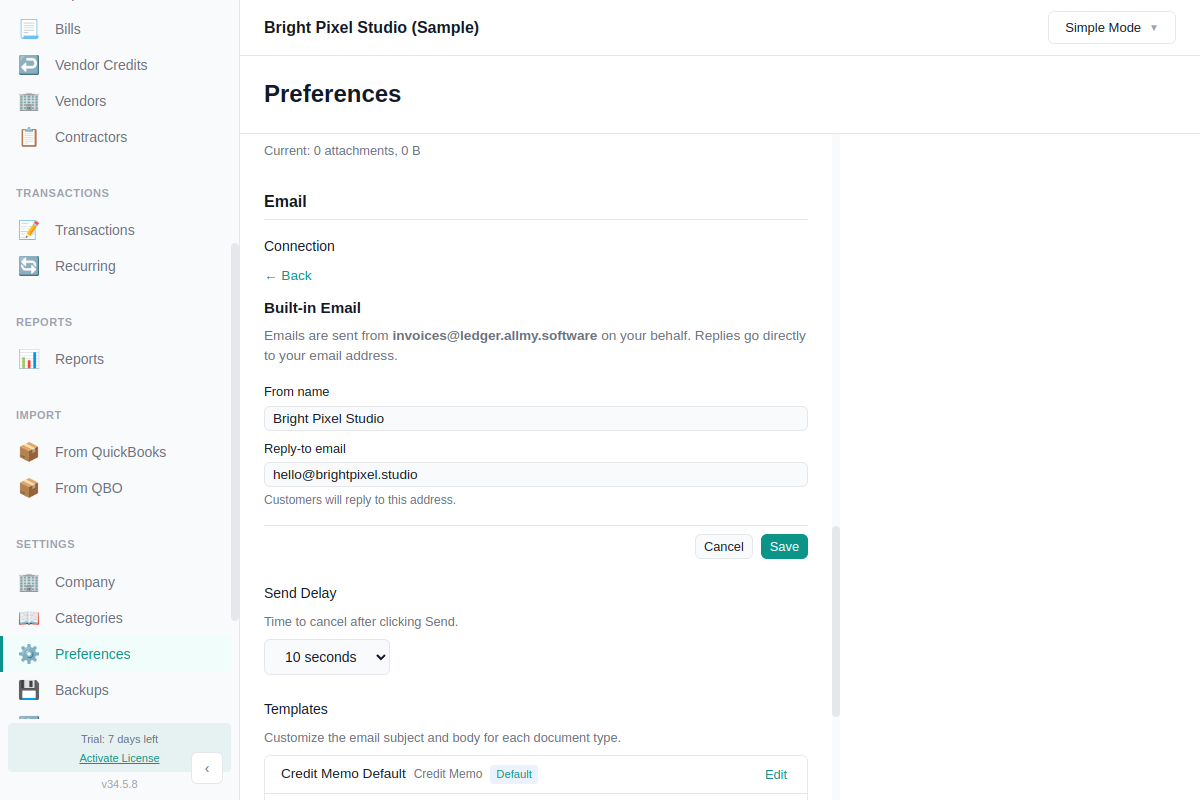
Built-in Email (AllMy service)
The simplest option. Emails are sent from [email protected] with your business name as the display name. Replies go to the email address you specify during setup.
- No SMTP credentials needed
- Requires an active (non-trial) license
- Up to 100 emails per day
- Setup: enter your business name and reply-to email, then verify the reply-to address with a 6-digit code
Verifying your reply-to address
Built-in Email sends a 6-digit verification code to the reply-to address you enter. This proves you own the inbox before AllMy Ledger relays mail on your behalf, which protects the sending domain reputation for everyone.
- Codes expire after 15 minutes. Click Resend Code if needed (30-second cooldown between sends).
- You get 5 attempts per code. After that, request a new one.
- Up to 3 code requests per address per hour.
- If you change the reply-to address later, you'll need to verify the new one.
The Email settings page shows a Verified or Unverified badge next to your connection. Sends are blocked until the address is verified.
If you set up Built-in Email before the verification requirement existed, AllMy Ledger prompts you to verify the next time you open the file. You can dismiss the prompt with Remind Me Later, but sending stays blocked until you finish.
Gmail
Send from your own Gmail address. Emails appear in your Gmail Sent folder. Requires an app-specific password (not your regular Gmail password).
- In your Google account, go to Security and enable 2-Step Verification (if not already on)
- Go to App Passwords and generate a new password for AllMy Ledger
- In the setup wizard, enter your Gmail address and the app-specific password
The SMTP server (smtp.gmail.com:587) is filled in automatically.
Other Email Provider (SMTP)
Connect any email provider that supports SMTP: Yahoo, iCloud, Outlook, corporate email, or your own mail server.
- SMTP server and port (check your provider's documentation)
- Encryption: TLS, STARTTLS, or none
- Username and password
- From name and From email (optional, defaults to your username)
SMTP passwords are encrypted using your operating system's keychain (macOS Keychain, Windows Credential Manager, or Linux Secret Service). If your system doesn't have a keychain available, the wizard shows a warning.
Sending an Email
There are two ways to email a document:
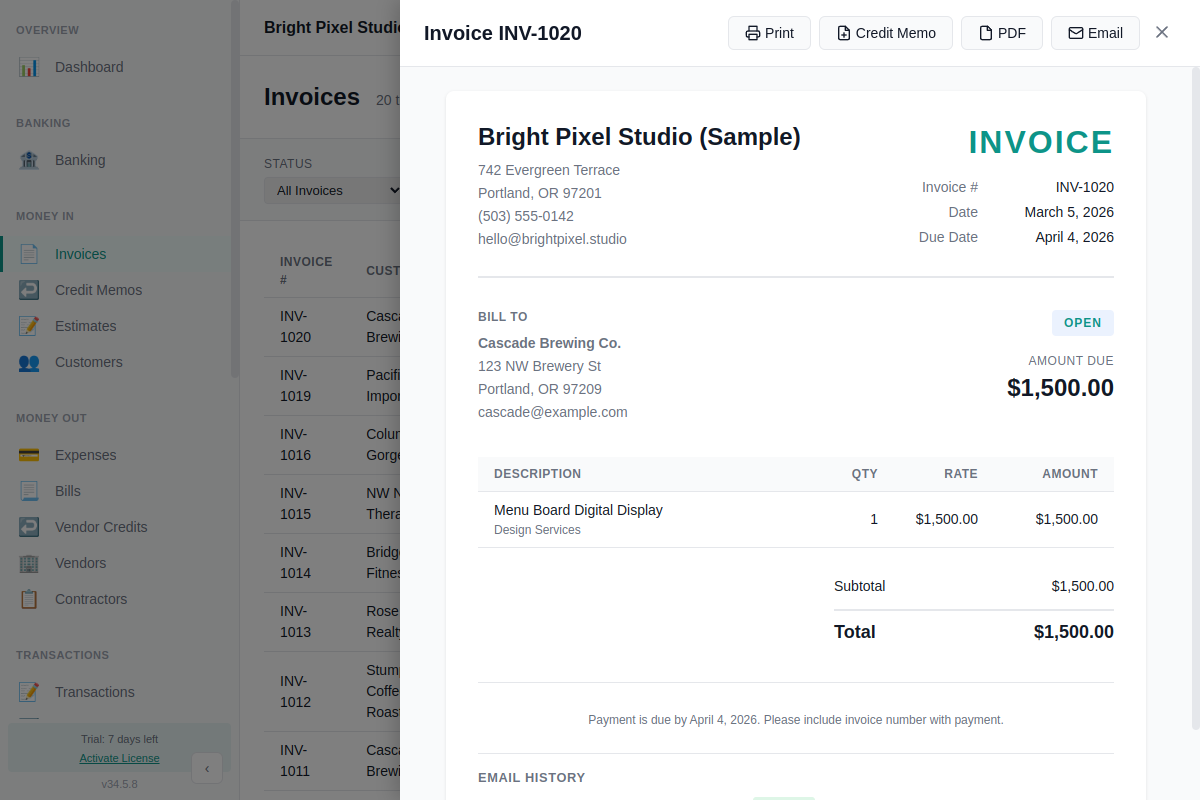
From the detail view
- Open any invoice, estimate, credit memo, or vendor credit
- Click the Email button
- Review and edit the email, then click Send
When creating an invoice
The invoice form has an Email to customer checkbox (checked by default if the customer has an email address on file). When you save the invoice, the send dialog opens automatically.
The Send Dialog
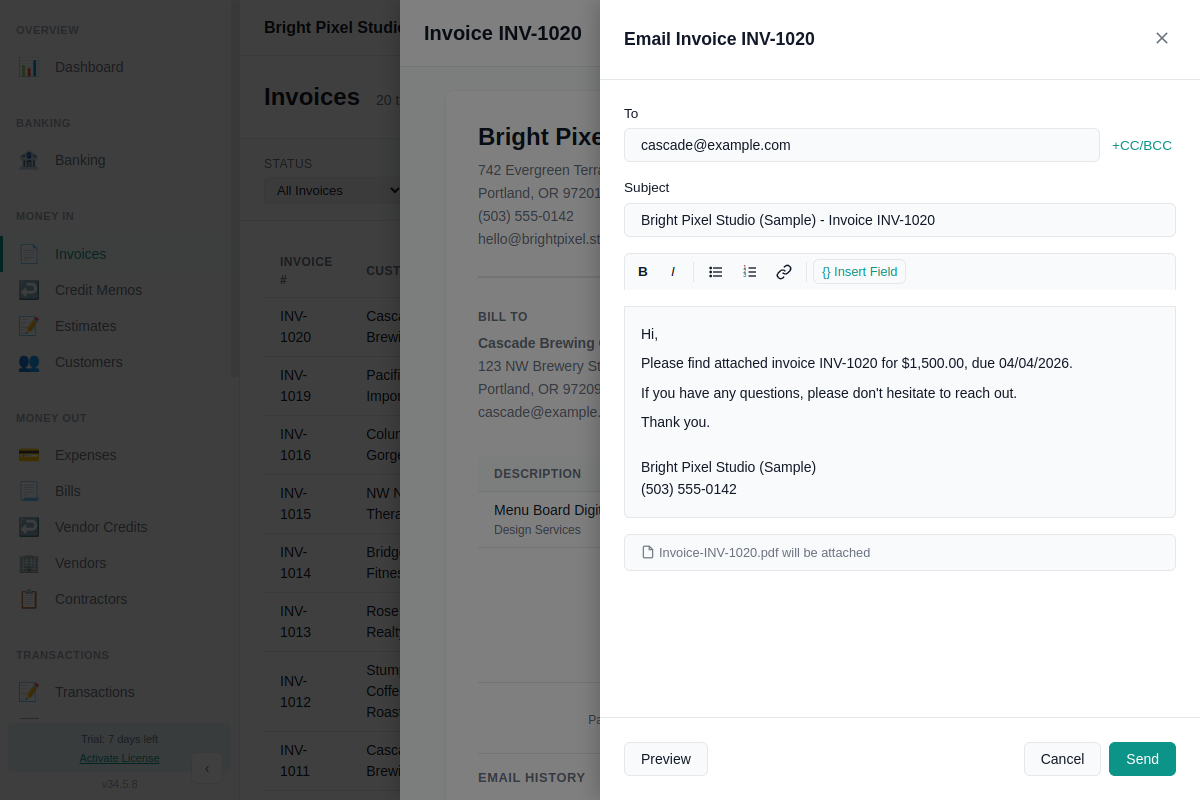
When you click Email, a dialog opens with these fields:
- To: Pre-filled from the customer's email. You can change it.
- CC / BCC: Optional. Click to expand, enter comma-separated addresses.
- Subject: Pre-filled from the template with merge fields resolved (e.g., "Invoice INV-0042 from Bright Pixel Studio"). Editable.
- Template: Choose which email template to use. Changing the template replaces the subject and body.
- Body: Rich text editor with bold, italic, lists, links, and merge field chips. Fully editable before sending.
- Attachment: The PDF is generated and attached automatically. You'll see the filename listed (e.g., "Invoice-INV-0042.pdf").
Click Preview to see how the email will look on desktop and mobile before sending.
Undo Send
After you click Send, a toast notification appears with a countdown and a Cancel button. The email is held for a configurable delay (default: 10 seconds) before it actually sends. Click Cancel to stop it and reopen the compose dialog.
To change the delay, go to Preferences > Email and adjust the Send delay setting. You can set it anywhere from 5 to 30 seconds, or turn it off entirely by setting it to 0.
Email Templates
AllMy Ledger includes a default template for each document type (Invoice, Estimate, Credit Memo, Vendor Credit). You can edit these or create your own.
Managing templates
Go to Preferences > Email and scroll to the Templates section. From here you can:
- Edit any template's subject and body
- Duplicate a template to create variations
- Set a default template per document type
- Delete templates you don't need (you can't delete the last template for a document type)
Merge fields
Merge fields are placeholders that get replaced with real data when the email is sent. Insert them from the toolbar dropdown in the template editor.
| Field | Replaced with |
|---|---|
{ClientName} | Customer or vendor company name |
{ContactName} | Contact person's name |
{InvoiceNumber} | Invoice number (e.g., INV-0042) |
{AmountDue} | Total amount due |
{DueDate} | Payment due date |
{IssueDate} | Document date |
{CompanyName} | Your company name |
{CompanyEmail} | Your company email |
{CompanyPhone} | Your company phone |
{CompanyAddress} | Your company address |
Estimates use {EstimateNumber}, credit memos use {CreditMemoNumber}, and vendor credits use {VendorCreditNumber} instead of {InvoiceNumber}. The template editor only shows fields relevant to the document type.
Email Activity Log
Every document tracks its email history. Open any invoice, estimate, or credit memo and scroll to the Email History section to see:
- When it was emailed and to whom
- The delivery status (delivered, failed, cancelled)
- Error messages if the send failed
Click Resend on any log entry to reopen the compose dialog with the same content. If you resend to the same recipient within 7 days, you'll see a warning (in case it was accidental).
Changing Your Email Account
To switch to a different email account or method, go to Preferences > Email and click Disconnect. Then run the setup wizard again with your new account.
Troubleshooting
"Connection failed" during SMTP setup
Double-check your SMTP server address, port, and encryption setting. Common causes:
- Wrong port (try 587 for STARTTLS, 465 for TLS, 25 for unencrypted)
- Firewall or antivirus blocking the connection
- Incorrect username or password
Gmail says "app password required"
Gmail requires an app-specific password when 2-Step Verification is enabled. Your regular Google password won't work. Generate one at myaccount.google.com/apppasswords.
"Encryption not available" warning
SMTP passwords are encrypted using your OS keychain. If no keychain is available (uncommon on modern systems), the wizard will warn you. On Linux, make sure you have a Secret Service provider installed (GNOME Keyring or KWallet).
Built-in Email says "license required"
The built-in email service requires an active (non-trial) license. Purchase a license or use Gmail/SMTP instead.
"Reply-to not verified" or Send button disabled
Built-in Email requires you to verify the reply-to address before sending. Open Preferences > Email, click Verify Now on the warning banner (or Verify Now in the send dialog), enter the 6-digit code sent to your reply-to inbox, and click Verify. Check spam if the code doesn't arrive.
Verification code didn't arrive
Codes go to the reply-to address you entered, sent from [email protected]. Check spam and any mail filters. Click Resend Code after 30 seconds. If you've requested 3 codes within an hour, wait for the rate limit to reset.
"Rate limit exceeded" with built-in email
The built-in service allows up to 100 emails per day. If you need to send more, connect your own Gmail or SMTP account instead, which has higher limits.
What Email Invoicing Doesn't Do
- Custom invoice PDF templates or logos (the PDF uses the standard format)
- Online payment links (Stripe, PayPal, etc.) in emails
- Batch sending to multiple customers at once
- Scheduled sends at a specific date and time
- Read receipts or open tracking