Credit Memos
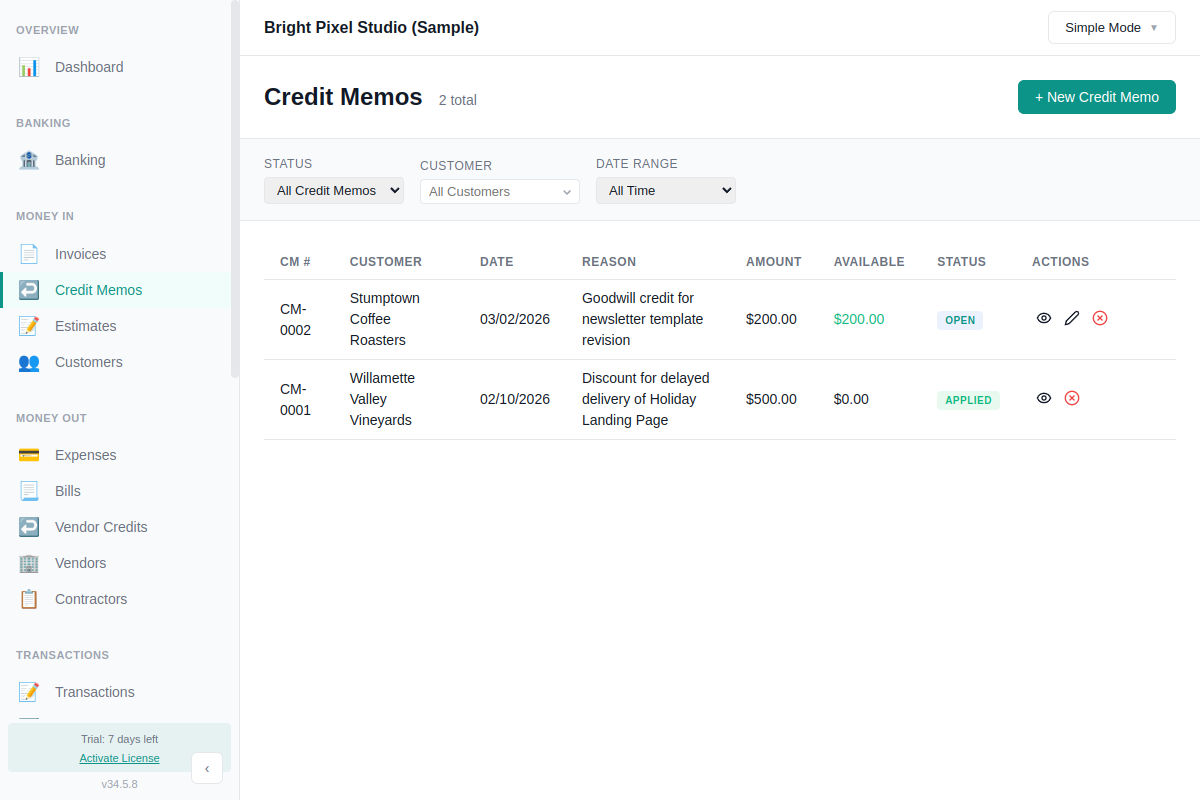
A credit memo reduces what a customer owes you. Use one when a customer returns something, you overbilled them, or you want to give a discount after the invoice was sent. Once created, you can apply the credit to open invoices or issue a cash refund.
Accounting impact is immediate. When you create a credit memo, AllMy Ledger records journal entries right away (debit income, credit accounts receivable). Applying the credit to an invoice is an allocation step with no additional entries.
Creating a Credit Memo
- Go to Credit Memos in the sidebar and click New Credit Memo
- Select a customer
- The number auto-generates (CM-0001, CM-0002, etc.) or type your own
- Set the Date
- Choose a Reason: Return, Billing Error, Discount, Allowance, or Other
- Add line items with a description, quantity, rate, and income account
- Add tax if the original invoice had tax
- Click Create Credit Memo
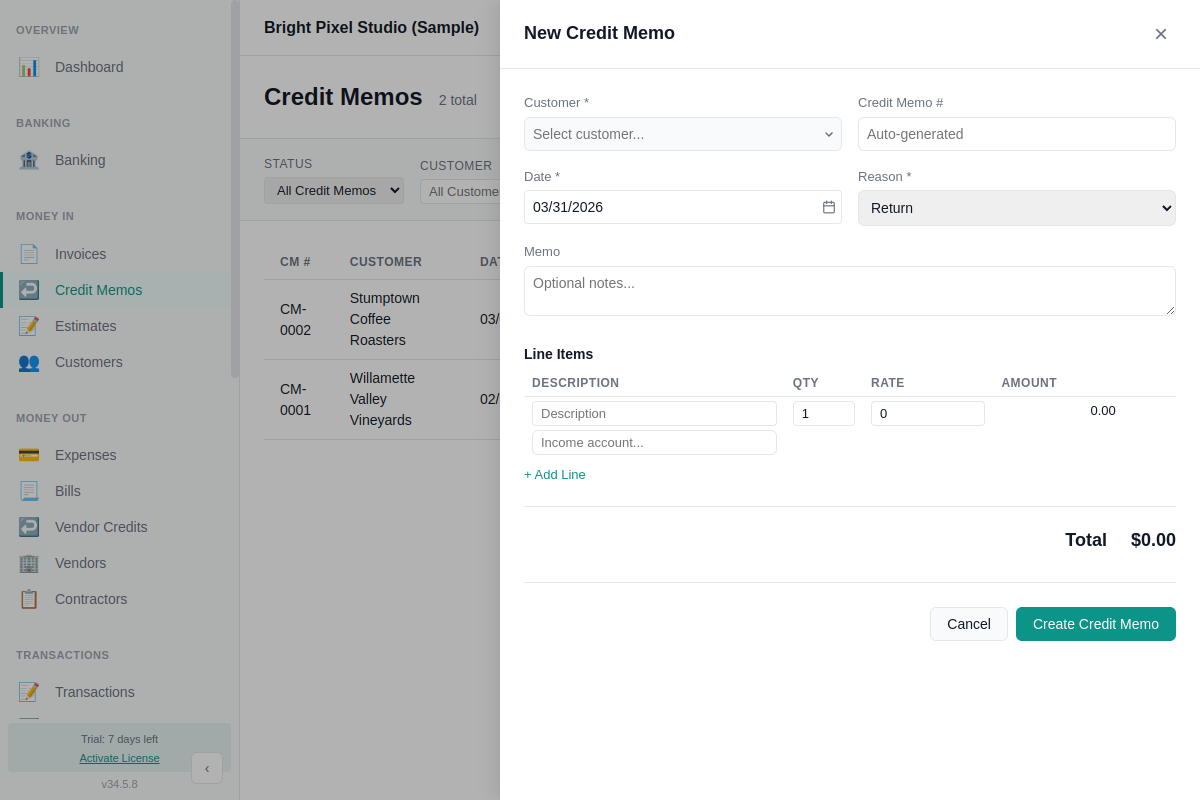
If the credit relates to a specific invoice, select it in the From Invoice field. This prefills the line items so you don't have to re-enter them. You can then adjust quantities or remove lines before saving.
Creating from an Invoice
There's a shortcut: open an invoice and click the Create Credit Memo button in the header. This opens the credit memo form with the customer and line items already filled in from that invoice.
Viewing a Credit Memo
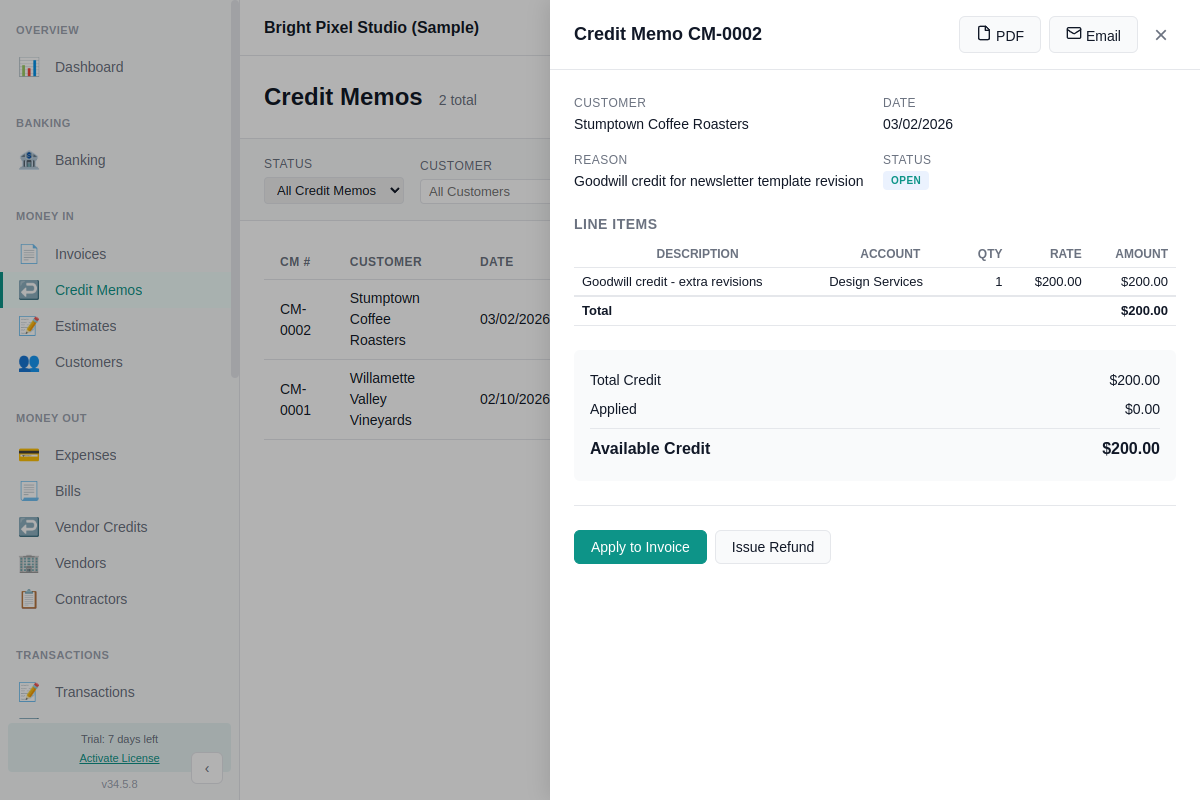
Click the view icon on any credit memo row to open the detail panel. It shows the customer, date, reason, line items, and how much credit is still available. From here you can apply credits to invoices, issue refunds, export as PDF, or void the credit memo.
Applying Credits to Invoices
After creating a credit memo, you can apply it to one or more open invoices:
- Open the credit memo and click Apply to Invoice
- You'll see a list of the customer's unpaid invoices with their balances
- Enter the amount to apply to each invoice
- Click Apply Credit
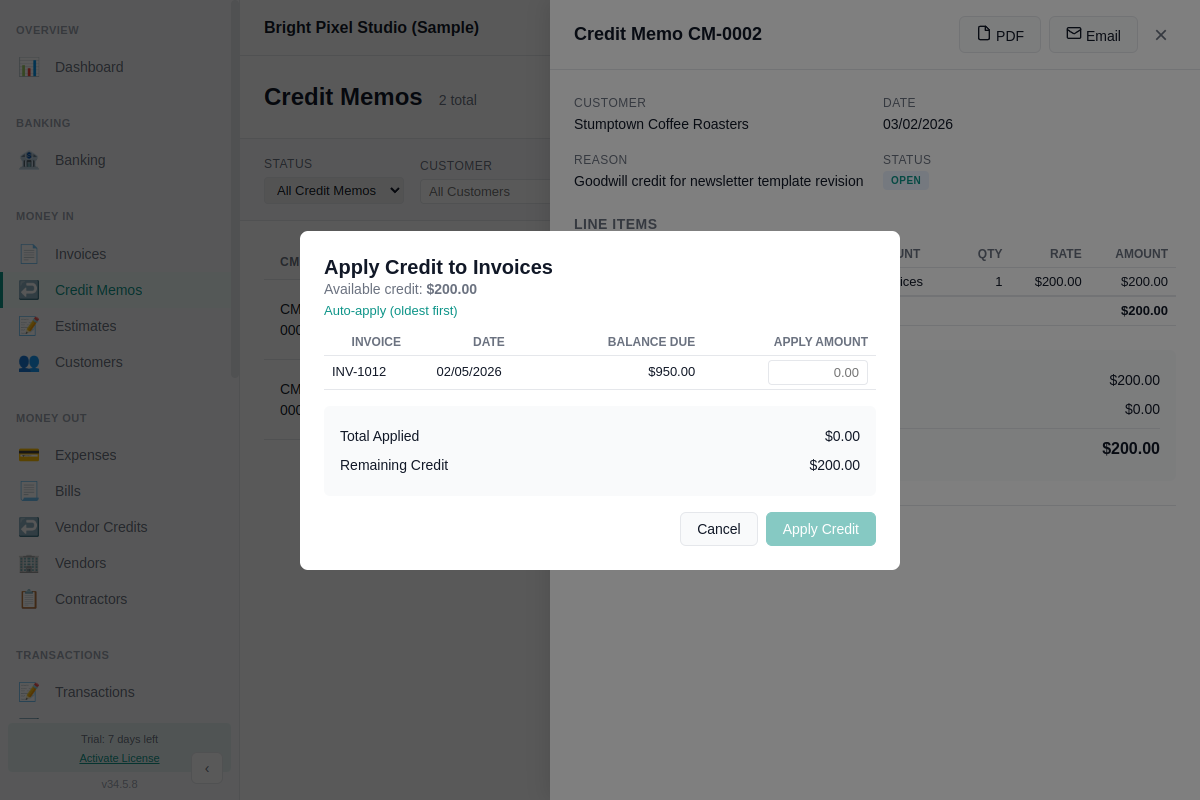
The Auto-apply (oldest first) button allocates the full credit starting with the oldest invoice. This saves time when you have several outstanding invoices and just want the credit distributed automatically.
You can apply a credit memo in multiple rounds. If you apply $200 of a $500 credit today, you can apply the remaining $300 later.
Issuing a Refund
If you'd rather pay the customer back instead of applying the credit to an invoice:
- Open the credit memo and click Issue Refund
- Select the bank account the money is coming from
- Enter the refund amount (can be partial)
- Click Issue Refund
This creates a Refund transaction (numbered REF-0001, REF-0002, etc.) and reduces the credit memo's available balance. You can combine applications and refunds on the same credit memo.
Removing an Application
Made a mistake? You can remove a credit application without voiding the entire credit memo. In the credit memo's detail view, find the application in the list and click Unapply. The credit goes back to the available balance, and the invoice balance is restored.
If you unapply a refund, the refund transaction is voided automatically.
Voiding a Credit Memo
To void a credit memo, open it and click Void. You must enter a reason. Voiding is permanent and cannot be undone.
You can only void a credit memo that has no applications. If credits have been applied, unapply them first.
Credit Memo Status
Status is calculated automatically based on how much credit has been used:
- Open — No credit applied or refunded yet
- Partially Applied — Some credit used, some remaining
- Applied — Full amount applied or refunded
- Void — Cancelled
Filter the credit memo list by status, customer, or date range using the dropdowns at the top.
PDF Export and Email
Open a credit memo and click PDF to save it as a file, or click Email to send it directly to the customer with the PDF attached. Email uses the same setup as invoice emails. See Email Invoicing for details.
Vendor Credits
Vendor credits are the mirror of credit memos for your bills. When a vendor owes you money (overbilled you, accepted a return, etc.), create a vendor credit to reduce what you owe them.
The workflow is the same:
- Go to Vendor Credits in the sidebar and click New Vendor Credit
- Select a vendor, set a reason, and add line items (expense or asset accounts instead of income)
- Numbering is VC-0001, VC-0002, etc.
- Apply to Bill works the same way as applying to invoices, with auto-apply oldest-first
- Receive Refund records cash received from the vendor into a bank account
- You can create a vendor credit directly from a bill using the Create Vendor Credit button
What Credit Memos Don't Do
- Cross-currency credit application (the credit memo and invoice must be in the same currency)
- Recurring or scheduled credit memos
- Automatic credit creation when a customer overpays