Importing from Another System
If you keep books in Xero, Sage, Wave, FreshBooks, a spreadsheet, or on paper, the mid-year migration wizard brings your balances into AllMy Ledger at a date you choose. You can type the numbers in, or upload the reports you already export from your old system.
Moving from QuickBooks? Use the dedicated importers instead: QuickBooks Desktop or QuickBooks Online. They read the QuickBooks report layout directly.
Two Ways to Switch
Pick the one that matches how much history you want in AllMy Ledger.
Balances only
The simplest path. Enter your account balances as of a cutover date and start posting from there. Prior years already sit in your equity, so a year-end cutover needs nothing more. Your old system stays as the archive for anything before the cutover.
Balances plus history
Use this when you want this year's transactions in AllMy Ledger without re-keying them. Set the cutover to today, upload a trial balance as of today, and upload your transaction journal for the period you want to see. AllMy Ledger works the opening balances back to the start of the period and fills the middle from the journal. In-between transactions arrive as journal entries, so a March sale shows on your reports but not as an invoice with payment history. Open invoices and bills as of the cutover still come in as real invoices and bills through their own steps.
What You Can Bring In
- Trial balance: your account balances at the cutover date. This is the one required piece.
- Year-to-date income and expense: so your Profit & Loss for the current year is complete. Optional.
- Historical journal: pre-cutover transactions for searching and reporting. Optional.
- Open invoices and bills: unpaid customer invoices and vendor bills, so payments apply normally after you switch. Optional.
Every optional section can be skipped and added later. You are never blocked from finishing.
File Formats
Upload the reports as you download them, in CSV or Excel (XLSX). You do not need exact column headers. AllMy Ledger reads the file, finds the header row past any title or total lines, and maps the columns for you. If a column is not matched, adjust it by hand before continuing.
The wizard also detects which system a file came from and reshapes known report layouts automatically. Xero exports are a good example: its Trial Balance fills both your opening balances and year-to-date figures from a single upload, and its grouped aging and journal reports are flattened for you. A banner tells you what was detected, with an option to override it.
The Wizard, Step by Step
Open Import → From Other System in the sidebar. The wizard has ten steps; the optional ones can be skipped.
1. Welcome
A short explainer of what you will need. Click Get started.
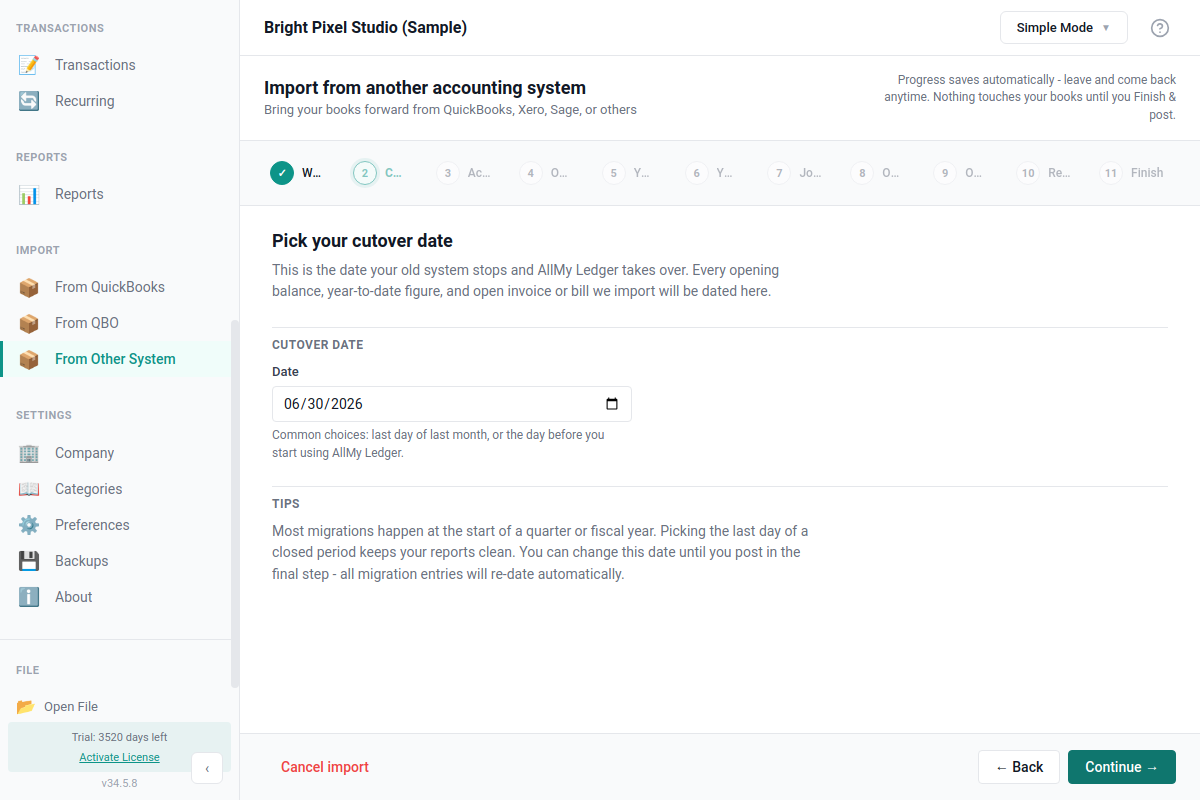
2. Cutover date
The date your old system stops and AllMy Ledger takes over. It defaults to the last day of the previous month. Common choices are the end of last month or the day before you start using AllMy Ledger. The date cannot be in the future or inside a locked period, and the wizard warns if you already have transactions on or before it.
3. Trial balance
Enter each account and its balance, or upload a trial balance export. Accounts that do not match an existing one can be matched or added on the spot. The debits and credits must balance before you continue.
4 and 5. Year-to-date income and expense
Enter or upload your income and expense totals for the year so far. Skip both if you cut over at your fiscal year-end, or if your historical journal already carries the year's activity.
6. Historical journal
Optional. Upload a transaction journal to bring pre-cutover history into AllMy Ledger. It accepts CSV or Excel with column mapping, and uses a journal-number column to group multi-line entries when one is present.
7 and 8. Open invoices and open bills
Enter or upload your unpaid customer invoices and vendor bills. Names that do not match an existing contact stay in the grid, highlighted, so you can assign them or add the contact inline. Use Add all to create every unmatched contact at once, or add them one at a time. If you upload the wrong kind of file for a step, the wizard warns you instead of importing it.
9. Review
Shows the exact opening journal entry that will post, plus a cross-check that your open invoice and bill totals agree with the matching balance-sheet accounts. What you see here is what gets written.
10. Done
The migration posts as one balanced entry inside a database transaction, so it either all lands or none of it does. Any section you skipped is listed here with an Add now link, and reminder banners appear on the related reports until you fill them in.
Fixing a Mistake
If a number is wrong, reopen the wizard and edit your posted balances. AllMy Ledger reverses the old entry and posts the corrected one, so the books stay clean. Cancelling the wizard before you finish removes any accounts and contacts it created along the way.
After Importing
Check a few numbers against your old system:
- Run a Balance Sheet as of the cutover date and compare totals
- Confirm your bank and credit card balances match
- Run a Profit & Loss for the year if you entered year-to-date figures
- Review your Chart of Accounts for correct types and hierarchy
What Doesn't Come Across
- Bank reconciliation history. Registers start unreconciled after the cutover.
- Inventory item starting quantities.
- Sales tax or VAT opening liabilities at line-item detail.
- Payroll year-to-date detail.
- Attached documents and receipts.
Need Help?
If a file will not map or the balances look off, contact support with a screenshot and the name of the system you are moving from.