Bank Reconciliation
Bank reconciliation means comparing your records in AllMy Ledger to your actual bank statement. It catches mistakes, missing transactions, and unauthorized charges. Do it monthly when your bank statement closes.
Importing Bank Transactions
Before reconciling, you'll want to import your bank transactions so your records are up to date.
- Go to Banking in the sidebar and select the account
- Click Import in the bank register toolbar
- Select your statement file (OFX, QFX, or QBO format)
- Review the imported transactions — AllMy Ledger detects duplicates automatically using transaction IDs
- Categorize new transactions and confirm
Most banks offer OFX or QFX downloads. Look for "Download Transactions" or "Export to Quicken" in your online banking portal.
CSV is not supported for bank statement imports. If your bank only offers CSV, check if they have an OFX or QFX option — most do.
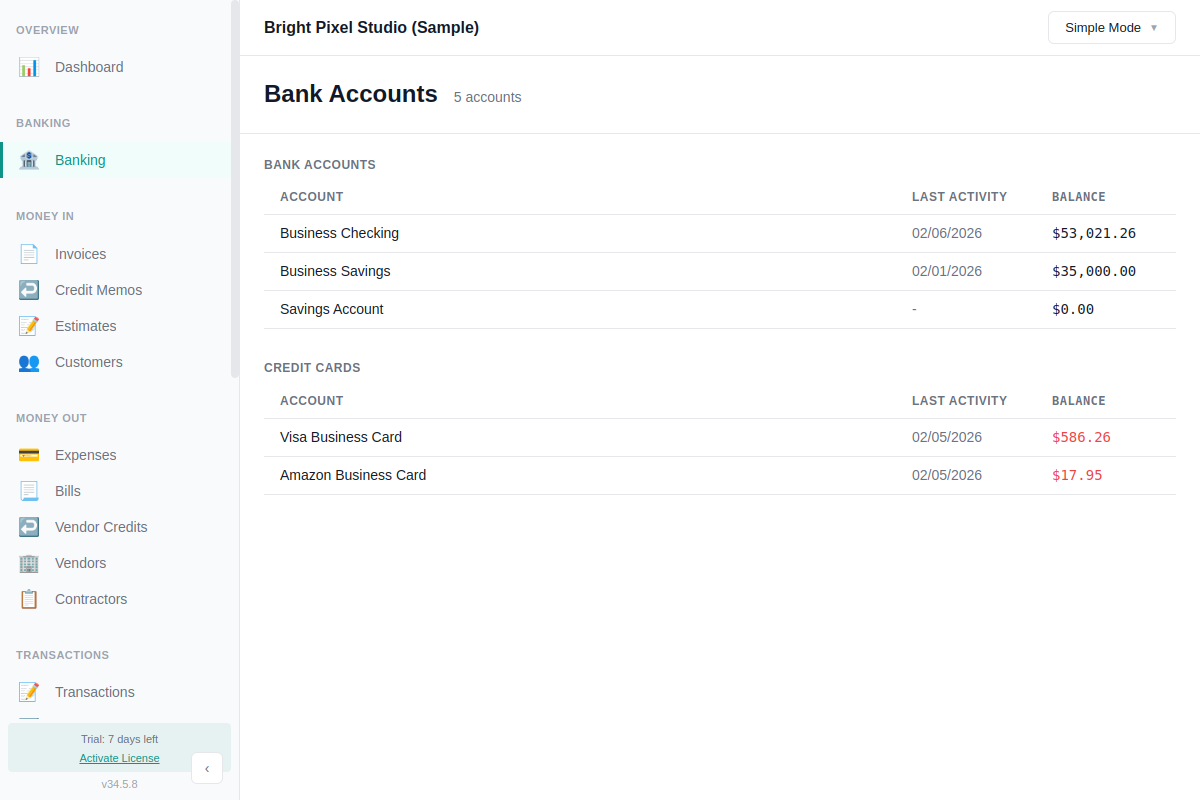
Starting a Reconciliation
With your bank statement in hand:
- Go to Banking and select the account
- Click Reconcile in the top-right
- Enter the statement date and statement ending balance from your bank statement
- Optionally add interest earned and service charges — AllMy Ledger creates the transactions for you and assigns them to the income or expense accounts you choose
- Optionally pick a payee. It's applied to every entry this reconciliation creates: the interest deposit, the service charge, and any credit card payment. If the payee is a vendor, a bill-method credit card payment fills in its vendor automatically.
- Click Start Reconciling
The beginning balance is shown automatically based on your last reconciliation (or the account's opening balance for the first time).
Clearing Transactions
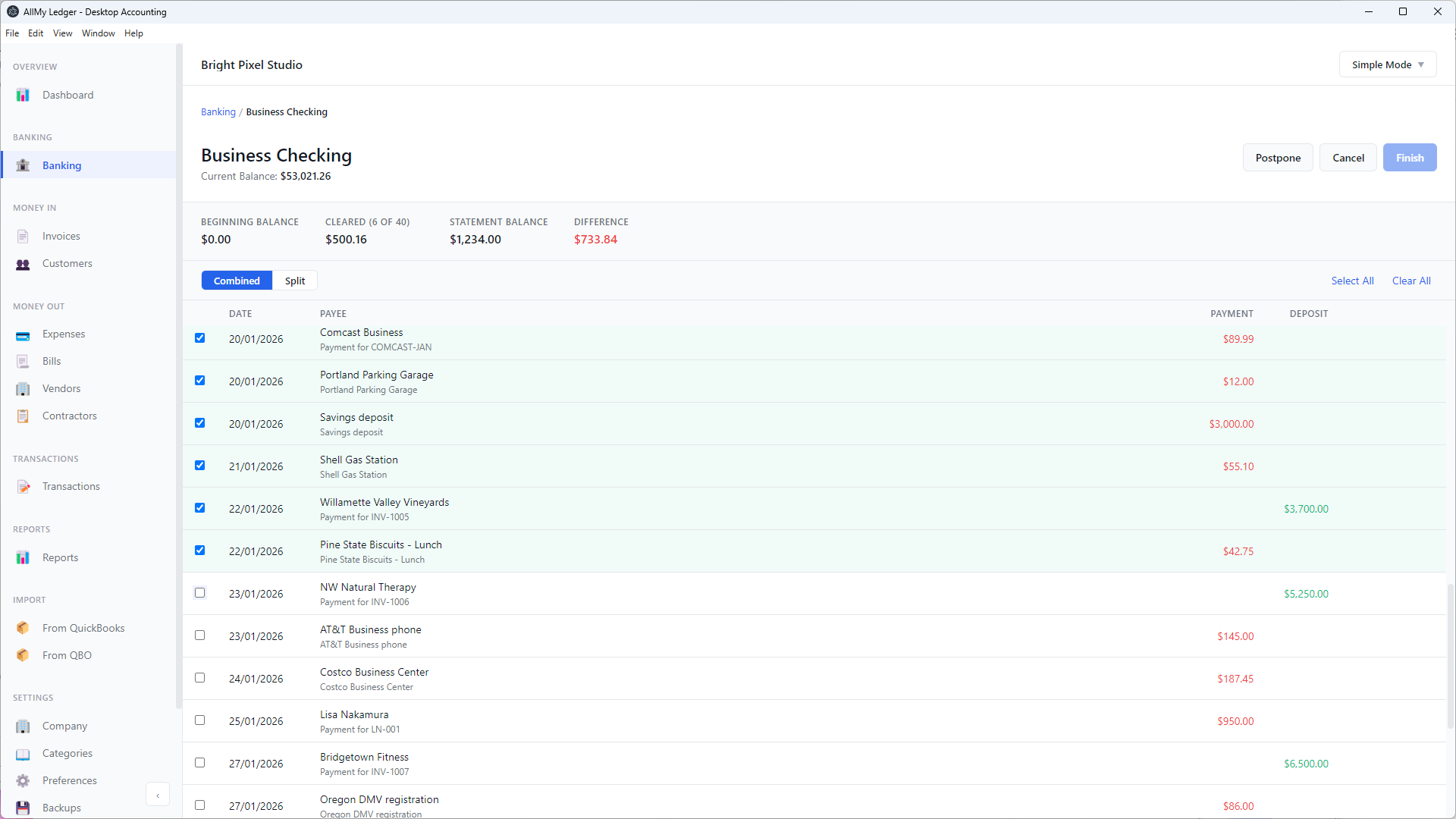
You'll see a list of all unreconciled transactions. For each one that appears on your bank statement, click the row or its checkbox to mark it as cleared.
The summary bar at the top updates in real time showing:
- Beginning Balance — from your last reconciliation
- Cleared — count and total of items you've checked off
- Statement Balance — what you entered from your bank statement
- Difference — must be $0.00 to finish
Use Select All or Clear All to speed things up. You can also switch between a combined view and a split view that separates deposits from payments.
Finishing
When the difference reaches $0.00, click Finish. AllMy Ledger marks all cleared transactions as reconciled — they won't appear in future reconciliation sessions.
If the difference isn't zero, review your cleared items against the bank statement. Common causes:
- A transaction is missing from AllMy Ledger (you can add it right from the reconciliation screen)
- An amount doesn't match the bank statement
- A transaction was cleared that shouldn't have been (uncheck it)
Postponing
Not ready to finish? Click Postpone to save your progress. AllMy Ledger remembers which transactions you cleared and your statement details. The next time you click Reconcile on this account, it picks up where you left off.
Changing Status from the Register
You don't always have to start a full reconciliation to change a transaction's status. The status column in the bank or credit card register is clickable. Use this for quick fixes — clearing a transaction you confirmed by phone, marking something reconciled when you imported it from a prior period, or backing out a status you set by mistake.
- Open the bank or credit card register
- Click the status cell on any row — blank, C (Cleared), or R (Reconciled)
- Pick a new status from the popover, or click Cancel to dismiss
- The register refreshes immediately
A few rules apply:
- Voided transactions are not clickable
- The status column is locked while a reconciliation session is active on that account
- If a transaction has lines in multiple accounts (like a transfer), only the line for the current register is affected
- Manually marking something R removes it from future reconciliation lists; setting it back to blank or C brings it back
Tips
- Reconcile monthly. Do it when your bank statement closes. Don't let it pile up.
- Import first, then reconcile. Get all your bank transactions into AllMy Ledger before starting.
- Check the dates. Make sure your statement period matches what you're reconciling.
- Use payee rules to auto-categorize imported transactions. After a few imports, most transactions will categorize themselves.