Simple vs Accountant Mode
AllMy Ledger has two display modes. Both use the same double-entry accounting system underneath — the difference is what you see on screen. No features are removed, only the labels and terminology change.
Simple Mode
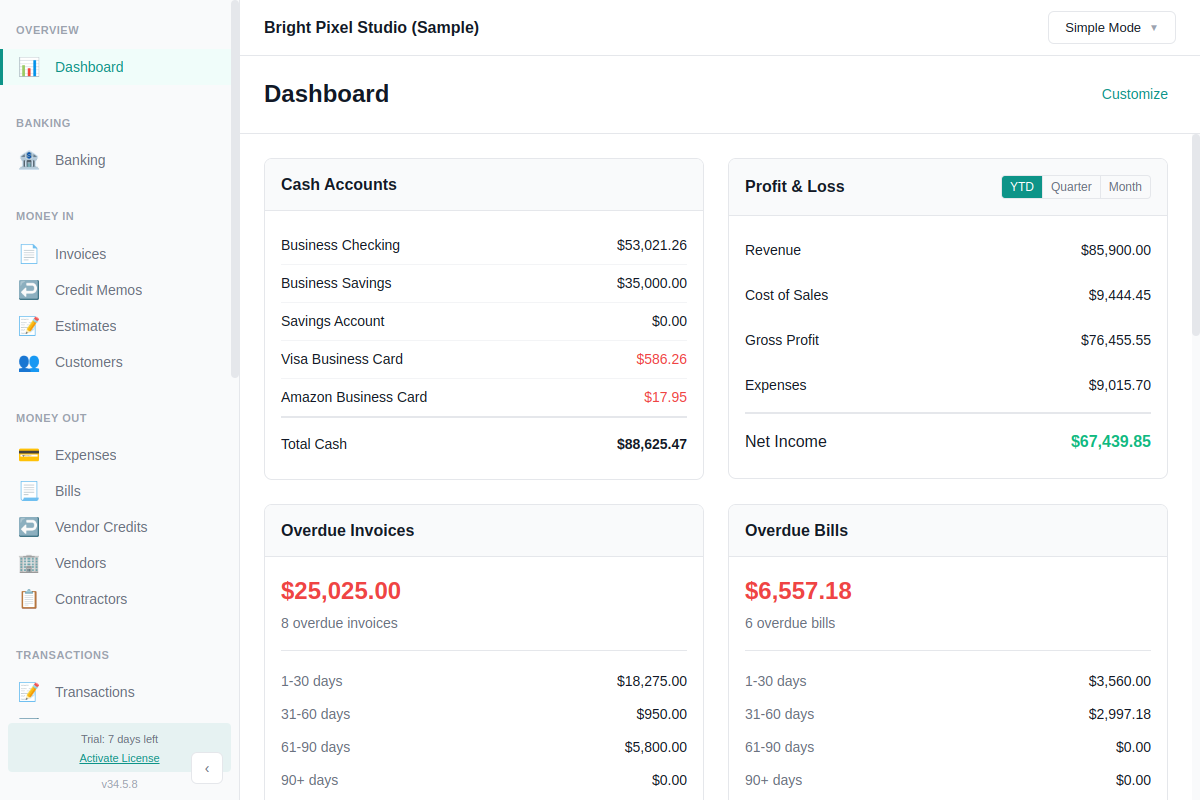
Simple Mode is the default. It's designed for people who aren't accountants — everyday language replaces accounting jargon:
- Sidebar sections use Money In and Money Out instead of Sales and Purchases
- The chart of accounts is called Categories
- The journal is called Transactions
- Account numbers are hidden — you see account names only
- Bank registers show fewer columns (no Type or Number columns)
Best for: freelancers, solo consultants, and small business owners who need invoicing and expense tracking without the accounting jargon.
Accountant Mode
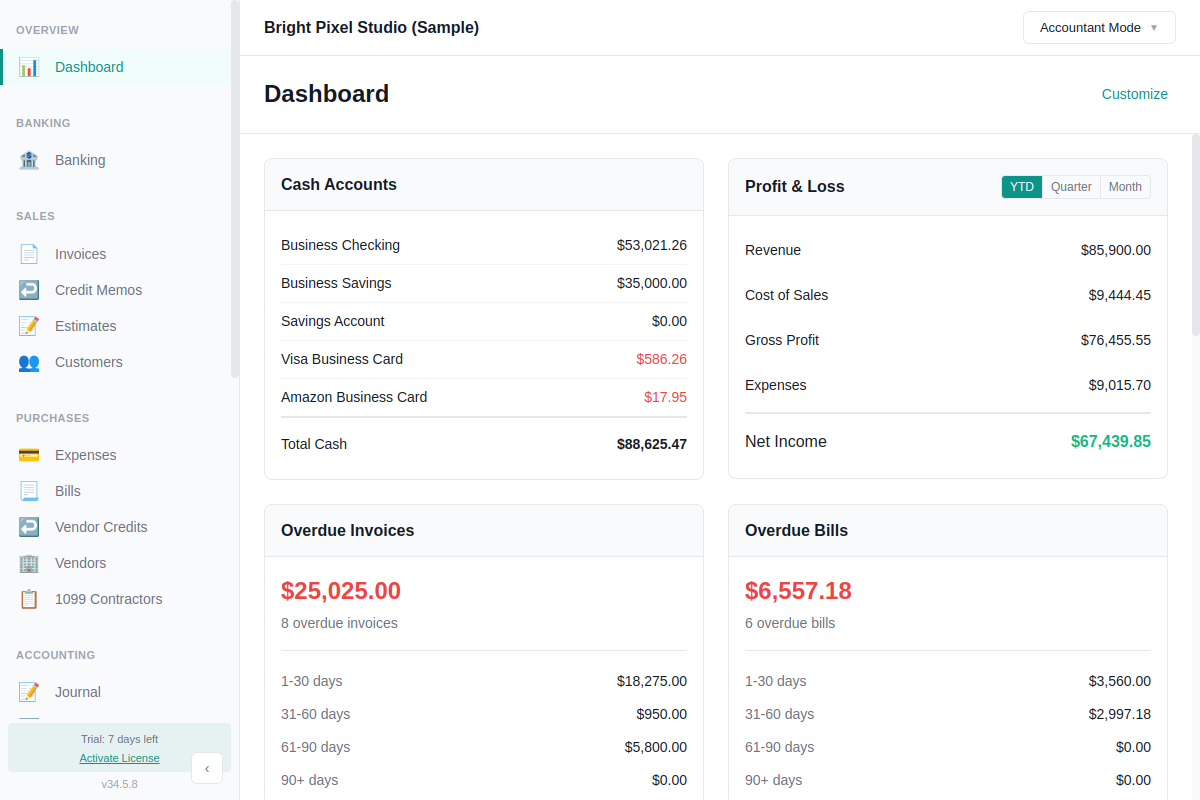
Accountant Mode uses standard accounting terminology throughout:
- Sidebar sections use Sales and Purchases
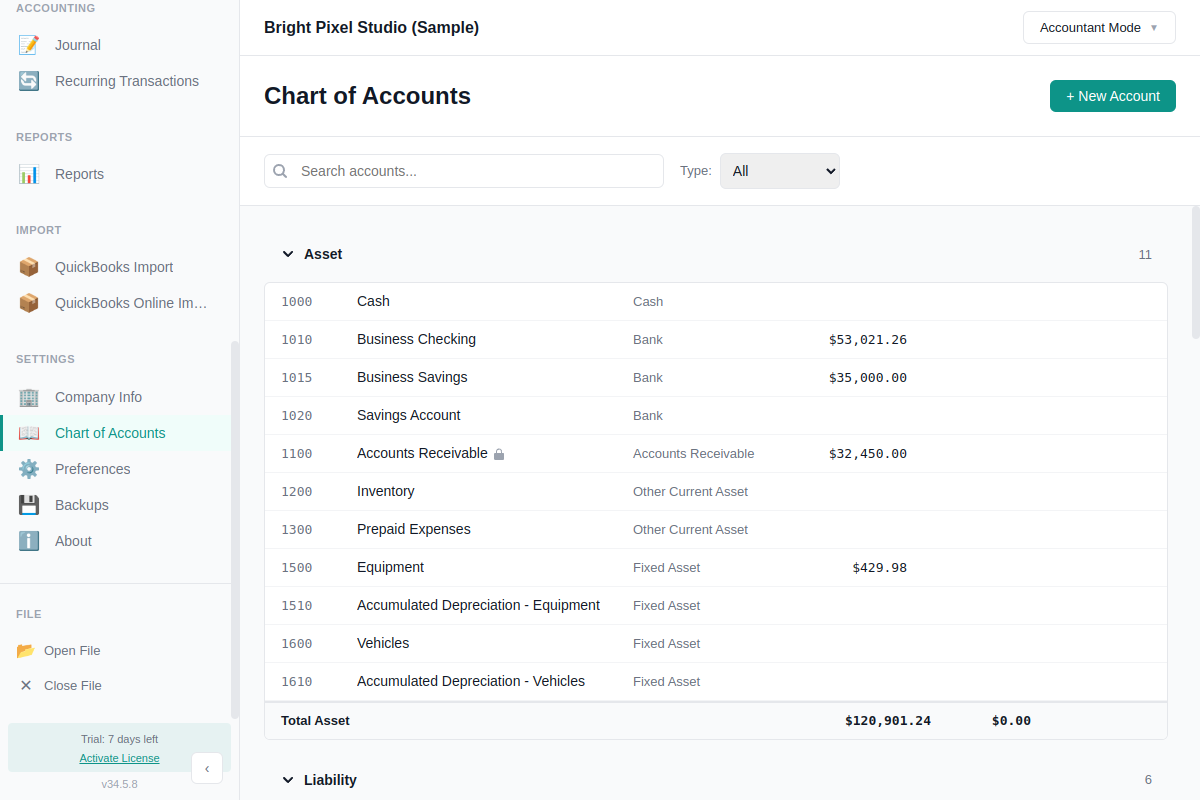
- Full Chart of Accounts with account numbers visible everywhere
- The Journal shows entries with proper accounting labels
- Bank registers include Type and Number columns
- Page titles change — Expenses becomes "Business Expenses", Invoices becomes "Sales Invoices", Bills becomes "Purchase Bills"
Best for: bookkeepers, CPAs, and anyone comfortable with double-entry terminology.
What Changes Between Modes
Here's a complete list of terminology differences:
| Area | Simple Mode | Accountant Mode |
|---|---|---|
| Sidebar section | Money In | Sales |
| Sidebar section | Money Out | Purchases |
| Sidebar section | Transactions | Accounting |
| Nav item | Transactions | Journal |
| Nav item | Categories | Chart of Accounts |
| Nav item | Contractors | 1099 Contractors |
| Nav item | Company | Company Info |
| Import nav | From QuickBooks / From QBO | QuickBooks Import / QuickBooks Online Import |
| Page title | Expenses | Business Expenses |
| Page title | Invoices | Sales Invoices |
| Page title | Bills | Purchase Bills |
| New entry button | New Transaction | New Entry |
| New account button | + New Category | + New Account |
| Account display | Operating Account | 1000 - Operating Account |
Categories (Simple Mode)
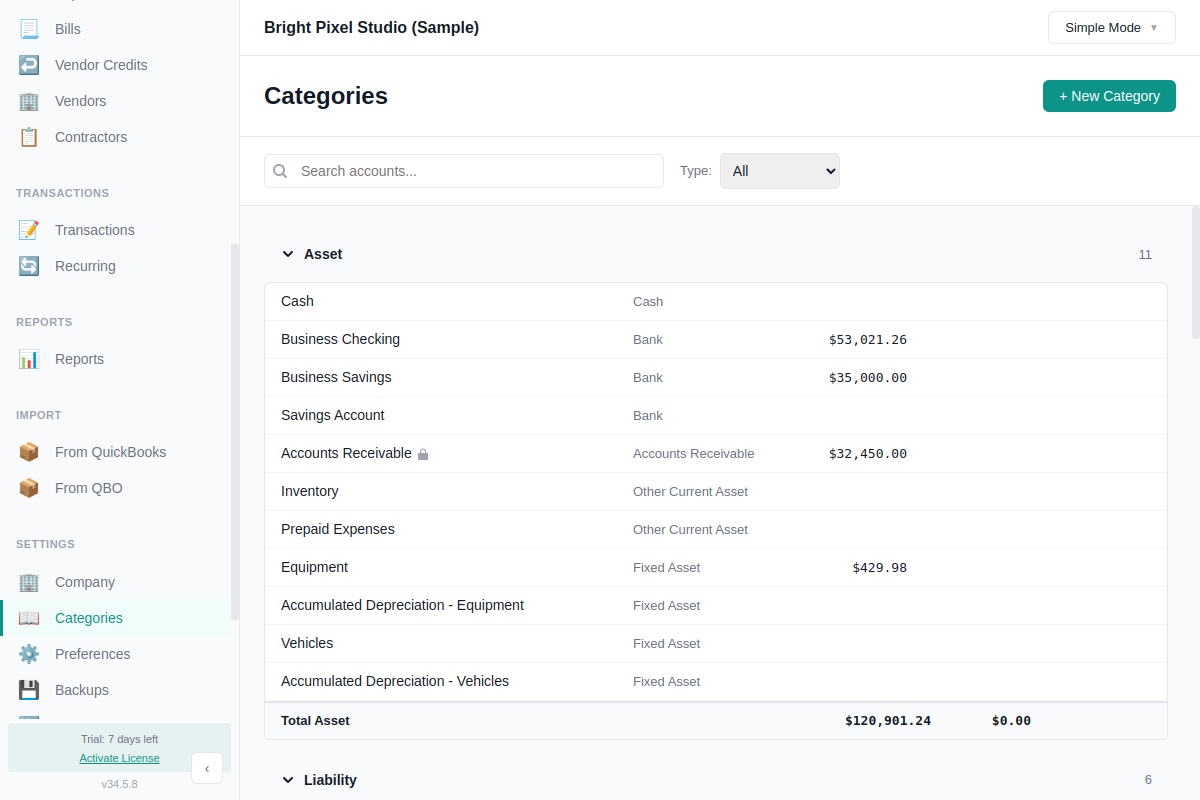
Chart of Accounts (Accountant Mode)
How to Switch
Click the mode button in the top-right corner of the app (it shows "Simple Mode" or "Accountant Mode"). A dropdown appears — select the mode you want. The change takes effect immediately.
Switching modes doesn't change your data. Every transaction is stored as a proper double-entry record regardless of which mode you use. You're just changing the labels.
The app starts in Simple Mode each time you open it.
Not sure which to pick? Start with Simple Mode. You can switch to Accountant Mode anytime, and your data stays exactly the same.